
 To Next Page

S
Shawn RichardsSep 6, 2025
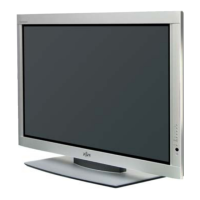
How to fix 'Change refresh rate to 60Hz' appearing on Fujitsu plasmavision?
- NnpruittSep 6, 2025
If your Fujitsu Monitor displays 'Change refresh rate to 60Hz,' you will need to change the refresh rate setting on your PC.

How to fix 'Change refresh rate to 60Hz' appearing on Fujitsu plasmavision?
If your Fujitsu Monitor displays 'Change refresh rate to 60Hz,' you will need to change the refresh rate setting on your PC.
How to fix degraded colors/tints on Fujitsu plasmavision Monitor?
If you're experiencing degraded colors or tints on your Fujitsu Monitor, check whether all picture adjustments have been properly made in the monitor's settings.
What to do if the power indicator lamp flashes red or green on my Fujitsu plasmavision?
If the power indicator lamp on your Fujitsu Monitor flashes red or green, remove the power plug from the receptacle and inform your dealer about how the lamp flashed.
Why does my Fujitsu plasmavision make a buzzing sound?
Your Fujitsu Monitor might be making a buzzing sound because it has fans to keep the internal components at a constant temperature. This sound is produced by the fan as it rotates. This applies to models equipped with a fan.
What to do if 'Error message Condition 1' appears on my Fujitsu plasmavision Monitor?
If 'Error message Condition 1' appears on your Fujitsu Monitor, it indicates that the fan is defective. Remove the power plug from the receptacle and contact your dealer for repairs.
What does it mean if 'Out of range' appears on my Fujitsu plasmavision?
If your Fujitsu Monitor displays 'Out of range', it means the monitor is receiving a signal it can't reproduce. Check which signals are supported by your display.
What to do if 'Error message Condition 2' appears on my Fujitsu Monitor?
If you see 'Error message Condition 2' on your Fujitsu Monitor, it means the display’s internal components are extremely hot. Remove the power plug from the receptacle. If the message reappears when you turn the power back on, remove the power plug again and contact your dealer for repairs.
What to do if the remote control does not function properly with my Fujitsu plasmavision Monitor?
If the remote control isn't working with your Fujitsu Monitor, try these steps: First, check that the batteries are oriented correctly and are not dead. Ensure you are within the remote's operational range and pointing it directly at the display's receiver. Lastly, make sure there are no obstructions between the remote control and the display.
Why is there no audio from my Fujitsu Monitor?
If you're not getting any sound from your Fujitsu Monitor, start by checking all audio cables to ensure they are properly connected. Then, verify that you've selected the correct audio input source in the monitor's settings.
What to do if no pictures are displayed on my Fujitsu Monitor?
If no pictures are displayed on your Fujitsu Monitor, there might be a simple fix. First, check all the cables to ensure they are properly connected. Next, verify that the power is turned on for all input equipment. Also, make sure the monitor is connected to the correct terminals and set to the correct input mode. Finally, check if the input mode display is colored pink, as this indicates a special setup that may need adjustment or initialization of the User adjustment value.
Details the front panel components and indicators of the display unit.
Identifies the connectors and ports located on the back and bottom of the display.
Explains the pin assignments for DVI-D, mD-sub, and RS-232C input terminals.
Lists supported resolutions, frequencies, and signal types for RGB input signals.
Lists supported video input signals and their formats, including SDTV and HDTV.
Instructions for inserting and replacing AA batteries in the remote control unit.
Guidance on connecting a PC to the display, including cable considerations.
Procedures for increasing, decreasing, and muting the audio volume using the remote.
How to switch between different video and RGB input sources for the display.
General steps for navigating and making adjustments within the display's menu system.
Explains how to adjust picture settings like contrast, brightness, color, and sharpness.
Settings for display information, language selection, and input name labels.
Troubleshooting guide for common display problems and when to contact a dealer.

 General