Deleting Unnecessary Scanned Images
When there are multiple scanned images, unnecessary crop frames can be deleted.
Scanned images without crop frames are not output and cannot be linked with an application.
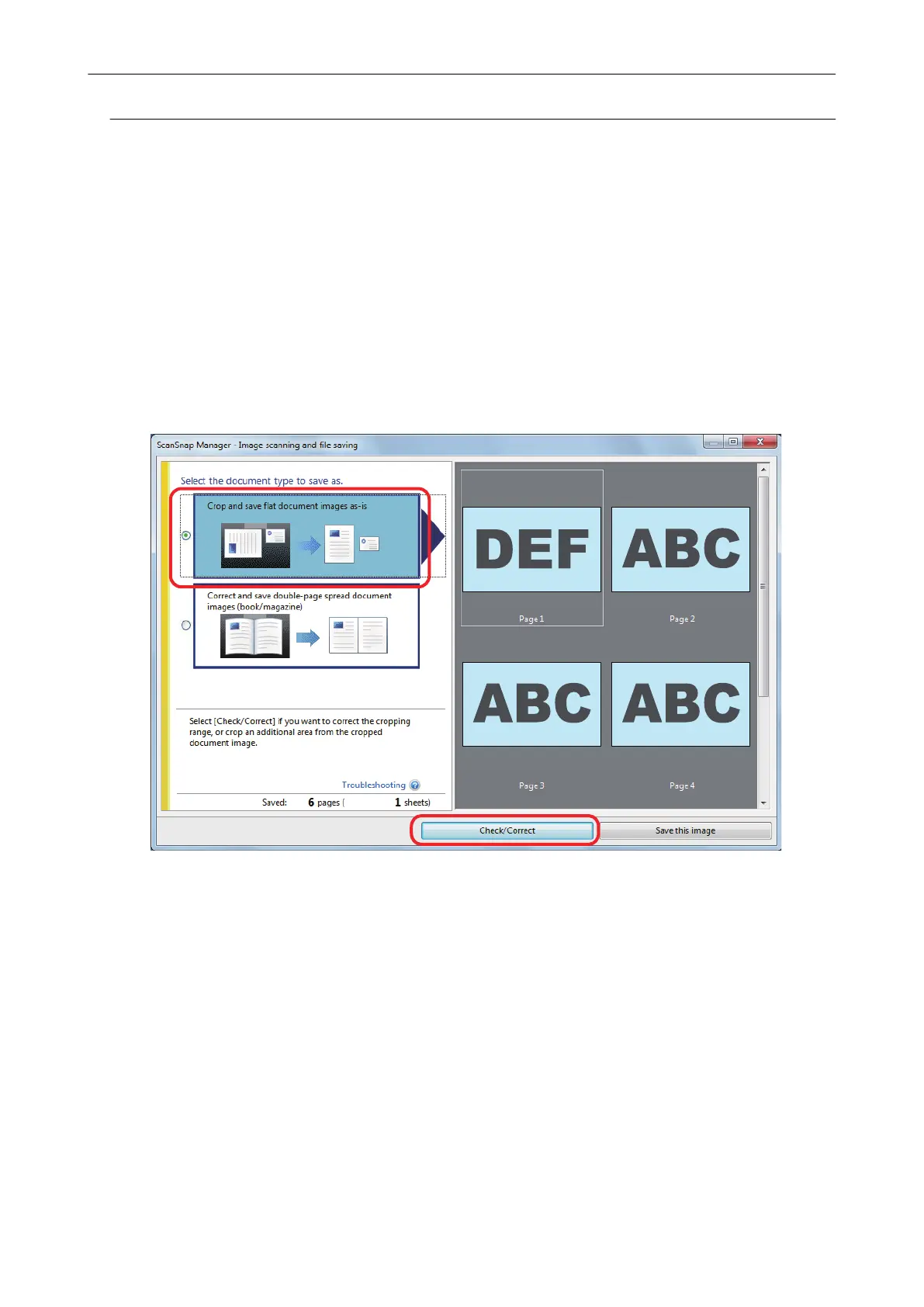
1. On the window that appears after multiple documents are scanned at once,
select [Crop and save flat document images as-is] and click the [Check/
Correct] button.
For details about scanning multiple documents, refer to "Scanning Multiple Documents at
Once" (page 31).
a The [ScanSnap Manager - View cropped images] window is displayed.
2. Select a scanned image to remove the crop frame.
Scanning Multiple Documents at Once
99


 To Next Page
 Loading...