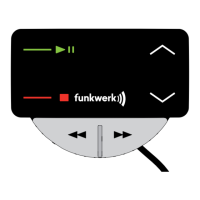
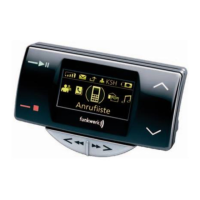
EGO LOOK
is available in the main menu. Capabilities not supported by the mobile telephone cannot be selected. Once the ignition
is switched off, the EGO LOOK powers down. If the ignition is switched off during a telephone call, this telephone call is
maintained. The EGO LOOK does not power down until the telephone call has been completed.
7.6.4 Entering the Bluetooth
®
PIN
After a few seconds you will be prompted to enter your Bluetooth
®
PIN. Enter the PIN shown on the EGO LOOK display
onto your mobile phone.
7.6.5 Hands-free mode
In some cases, coupling with your mobile phone in the hands-free mode does not work when using the method described
above. If you are sure that your mobile phone supports the Bluetooth
®
hands-free profi le, proceed as follows: In the
list of detected devices, select “couple from phone”. Now you need to search for Bluetooth
®
devices using your mobile
phone. The procedure for this can be found in the operating instructions for your mobile phone. The mobile phone will
then start searching for devices. Select the EGO LOOK from the list of devices found by your mobile phone. During the
coupling process, your mobile phone will prompt you to enter a PIN or password. At this point, please enter the series
of numbers shown on the display of the EGO LOOK. After a short time, the mobile phone should inform you that coupling
was successful. You may also cancel the coupling at any time by pressing the key. If coupling fails, please read the
section on “Troubleshooting”.
7.6.6 Automatic coupling
If the phone is already connected with the EGO LOOK, the EGO LOOK will try to couple to this phone. If the search is
successful, a connection is automatically established. A search is always performed for the most recently connected
mobile phone.
If the search process was unsuccessful, it‘s possible that Bluetooth
®
or the mobile phone is not turned on, or that you
were not the last user. If you would like to select another user, activate user management and log this user in.


 To Next Page
 Loading...