37
If you see cracking in the part, bump the head temperature up 5 to 10
o
C. Do not exceed 305
o
C on the head. You
can also try printing slower and make sure the cooling blower is not running.
7.7.3 Model Issues
There are many issues that can be present in the STL files themselves that can cause problems with your prints.
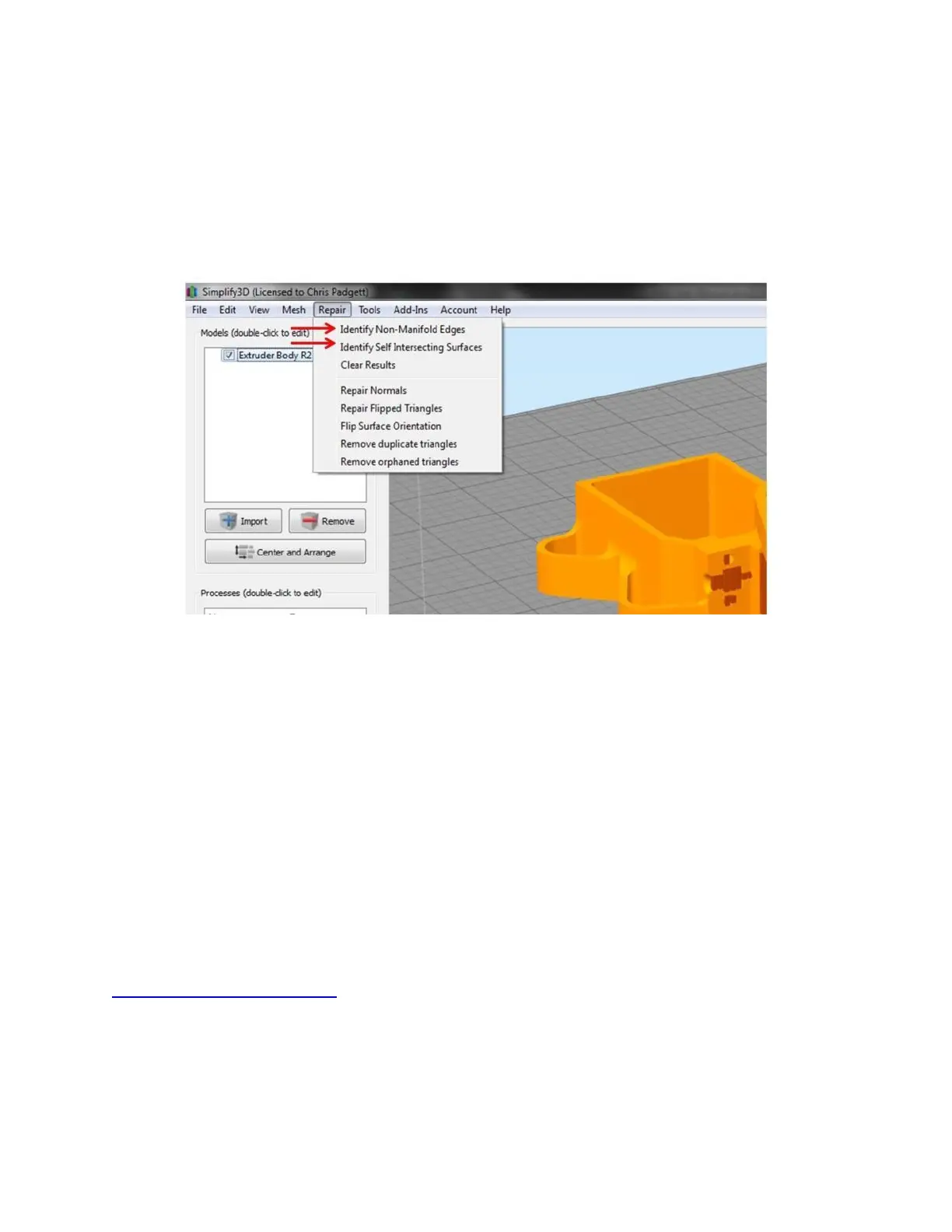
Simplify has some built-in ability to diagnose these problems. Under the “Repair” menu are two options to detect
issues.
In some cases, Simplify will be able to correctly slice the model anyway (it tries to make some assumptions about
what the part should look like) but it’s better to repair the file before attempting to slice it.
Other models may technically be “correct” STL files, but will still print poorly for some of the following reasons:
Internal geometry that is not needed
Not oriented properly (at a very slight angle)
Excessive number of faces
Zero thickness faces
When in doubt, preview the gcode and make sure it makes sense!
7.7.4 Repairing Models
While Simplify has some built-in options for repairing broken models, we’ve had the best luck with an online tool
called Netfabb cloud. This is a free service that will automatically repair any STL you upload and give you a fixed
version to download. You will need a Microsoft online account to use it.
https://netfabb.azurewebsites.net/
7.7.5 “Mystery Bridge” Layers
On some models you may see toolpaths generated that don’t match your model at all. Maybe there is a layer
where a hole is filled in (“bridged”), or maybe there are missing layers of gcode.


 To Next Page