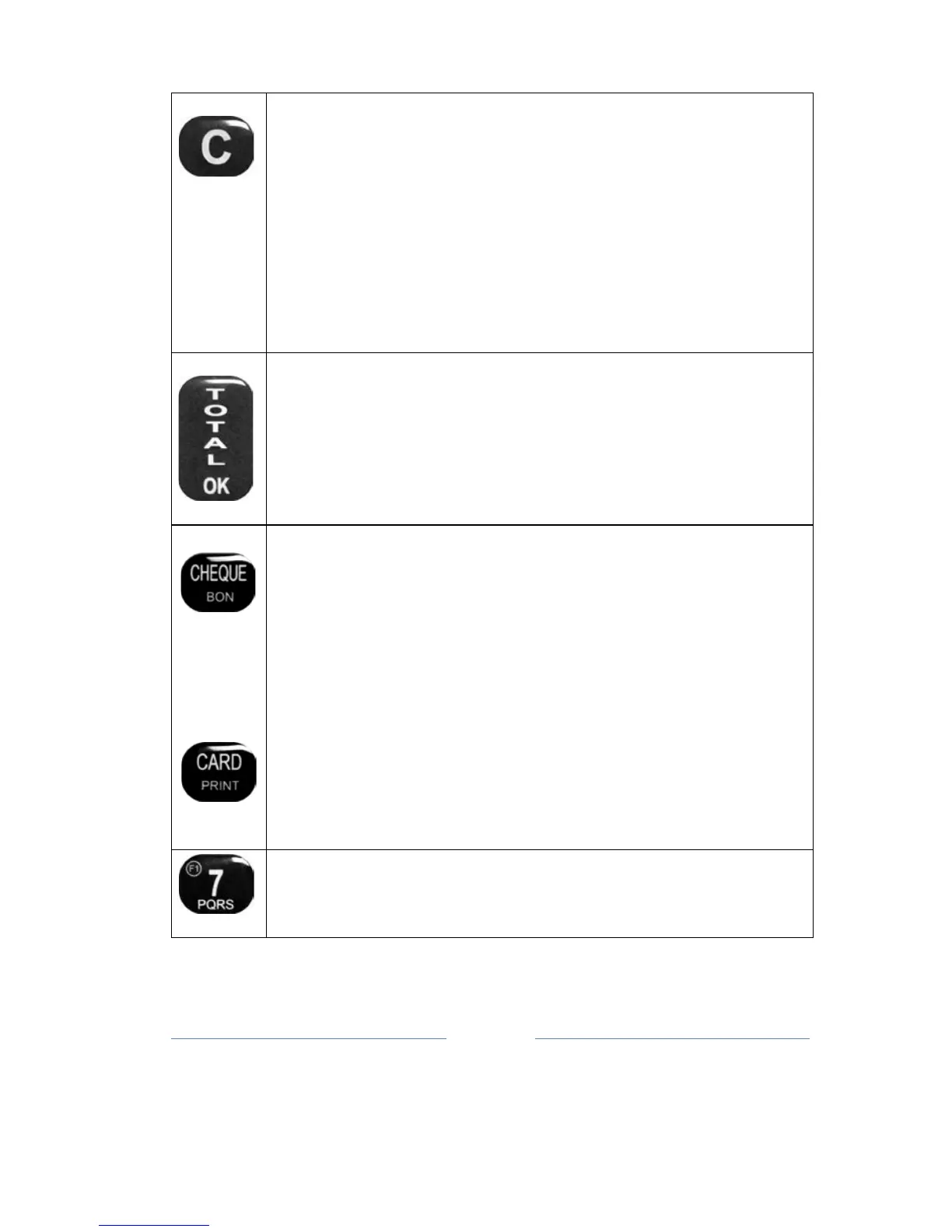
Pressing this button immediately after entering the PLU
code,
cancels
the
sale
If you want to CANCEL by free choice item sold (before
closing
the
account with the OK button) you need to press
the SHIFT key
and
then
key ▲ ROLL. The display shows
the items that are already pr
inted
on the bill, which is key
▲
ROLL rotate them in the display. When you find the item
you want
to
cancel, you make the PLU key confirmation,
and on the fiscal
receipt
printed label with the desired item
VOI
D
.
Delete: Cancels the number before pressing the function key,
and
errors made when pressing the function ke
y.
Ends an active customer fiscal receipt and marks cash
payment. If you press
the
button before the entered sum
given by the customer, the printing in
the
account amount
and the rest of the money. If the customer is given
a
smaller
amount than is necessary, partial payment will be
made.
Partial
payments are allowed for payment with the
card, or check. For details, see
the
description of the keys
These keys are used for paying by credit card or by ch
eck;
First you enter the amount. Pressing the desired button
executes the
payment.
It is allowed to pay the same bills combined (combination
of multiple forms
of
payment on the same fiscal rece
i
p
t
s
).
Example: selecting payment methods, e.g. CARD, if it
happens that the
money
from
the card does not cover the
entire bill, the display shows the remaining am
ount
to be
paid. If we want to pay the rest of by check, enter the rest of
the
figure,
and choose to pay by check button. If you just
want to pay the rest in cash, by pressing the OK made the
payment and the account is
closed.
If you want to enter Bayer's TIN, you must be in sale
mode, and then press the Shift key and the key 7. After
that you enter the numbers and confirm the Total.


 To Next Page