All messages in the group can be printed while in
the sub-menu by pressing the
CARD.
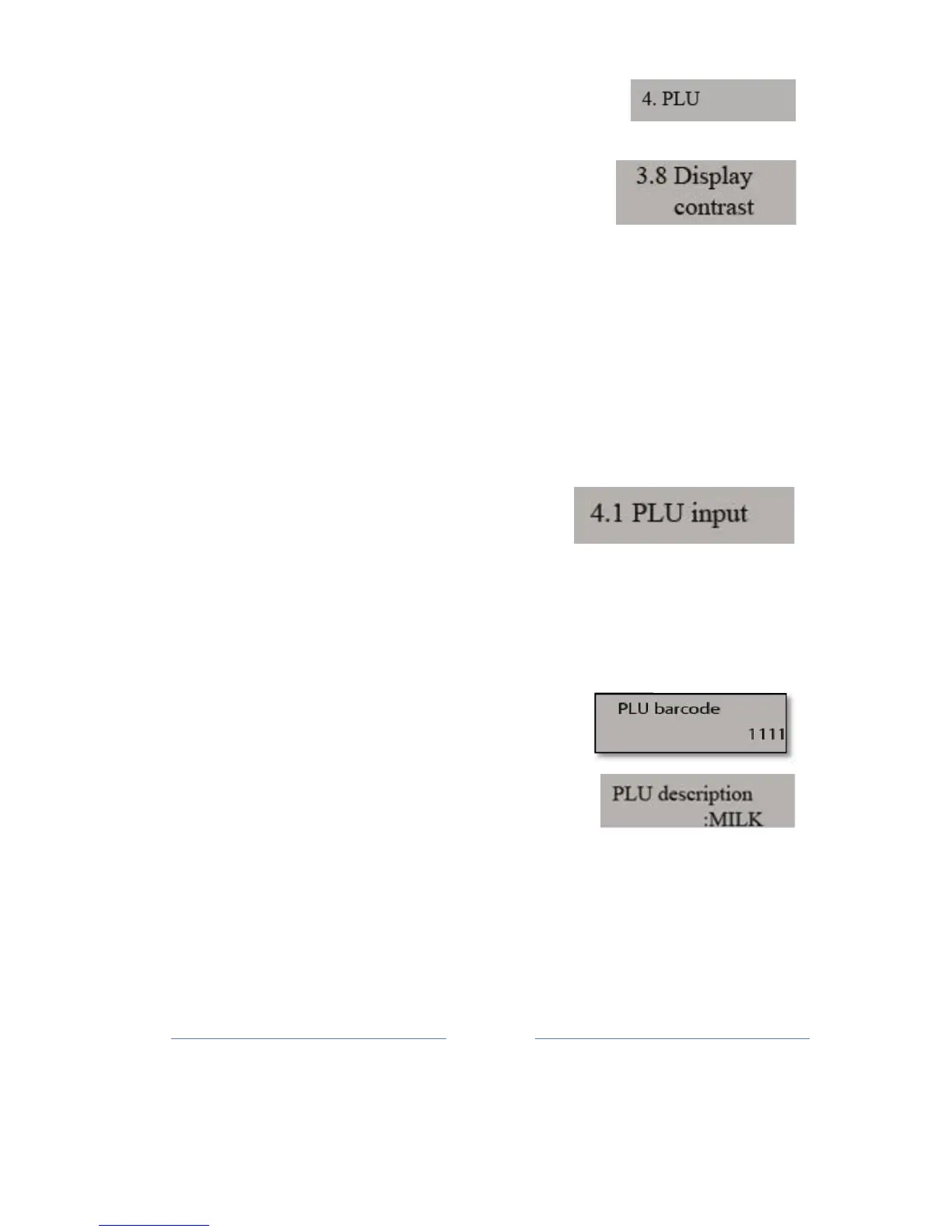
10.8. Display contrast settings
The cash register GALEB GP-100 supports the display contrast settings.
When
selecting this option opens a Menu in which it is possible to adjust
the contrast with the values
of
0 –
15.
11. PLU settings section
Menu 4 contains sub-menus that provide the user the ability to control
the database in
the
fiscal cash register.
11.1 PLU input
In this submenu, the user is permitted to add new items or edit existing
ones.
Using the keyboard, enter the correct bar-codes items, i.e. article PLU
code, which c
onfirms
the
TOTAL
key, and it comes in the
next
sub-
m
enu.
Entering the barcode article, can be entered
using the bar-code reader
.
Reading the bar
code in a product (article which you enter)
thro
ugh the bar- code reader in this sub-
menu, is identical bar code e
ntr
y
from
the
keyboard + key on the confirmation (TOTAL)
i.e. the device automatically switches to the
next
sub-menu,
which is a description, i.e. name of the
item.
The following sub-menu is PLU Description. Using the keyboard and
marked characters on the keyboard, perform the input the name
a
rticle
(see the guide for the keyboard). At any time, you can check
your entry using the key CARD and the current entry for
selected
article
will be
printed.


 To Next Page