FPT Gateway Configuration Procedure FPT Gateway Configuration
29FocalPoint™ Gateway Installation & Operation Manual - P/N: 52649:Rev: B3 2/11/10
3.2.4 Login Password Settings
The first time the gateway is started the factory default password is used (44444444 - eight fours),
after the initial configuration it is highly recommended that you change the password.
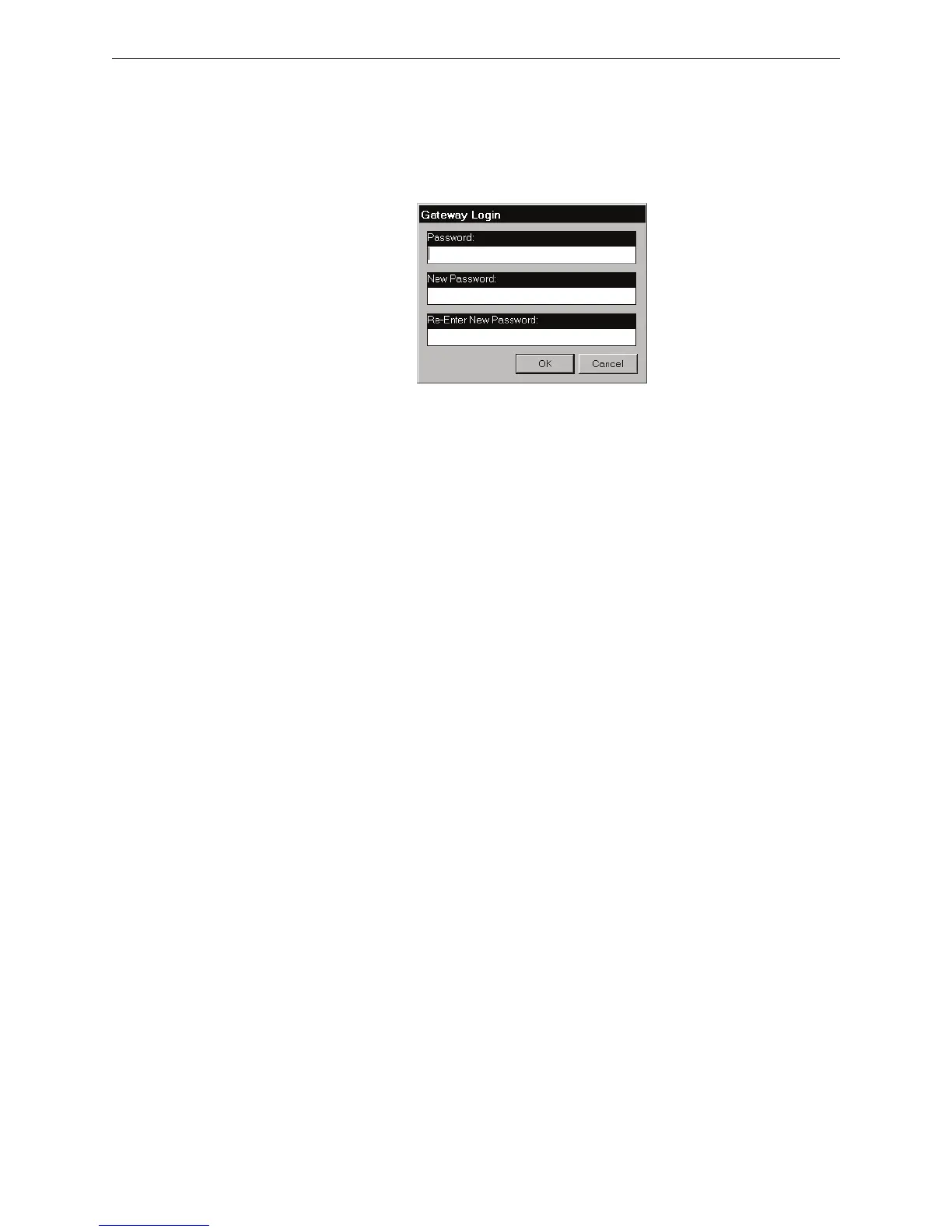
Step 1. Select Configure >Set Gateway Password. The Gateway Login (change password)
window displays.
Figure 3.6 Gateway Login - Change Password Window
Step 2. Type in the current password in the Password field.
Step 3. Type in a new password in the New Password field.
• Passwords are case-sensitive.
• Alpha and numeric characters are supported.
• 1 character minimum and 8 character maximum.
Step 4. Type in the new password again in the Re-Enter New Password field.
Step 5. Click the OK button to complete the password change.
You have completed "FPT Gateway Configuration" if you followed the procedures in this
section in this order:
• “IP Address Setting” on page 24.
• “Time Settings” on page 27.
• “Login Password Settings” on page 29.



 To Next Page