Gateway and System Communication Configuration FPT Gateway Configuration
31FocalPoint™ Gateway Installation & Operation Manual - P/N: 52649:Rev: B3 2/11/10
3.3 Gateway and System Communication Configuration
The FocalPoint™ Workstation software application is used to establish communication between
the FPT Gateway and the FocalPoint™ System so the Workstation can start to monitor the system.
The Configuration Tool references a gateways as a networks
3.3.1 Add a Network Connection to the Workstation
About Adding an Existing Gateway
When you first start the Workstation you can automatically connect gateways that are physically
connected or available through your FocalPoint™ system to the Workstation using PC Monitor
operations.
Step 1. Locate and right click on the PC Monitor icon in the Windows system tray and then select
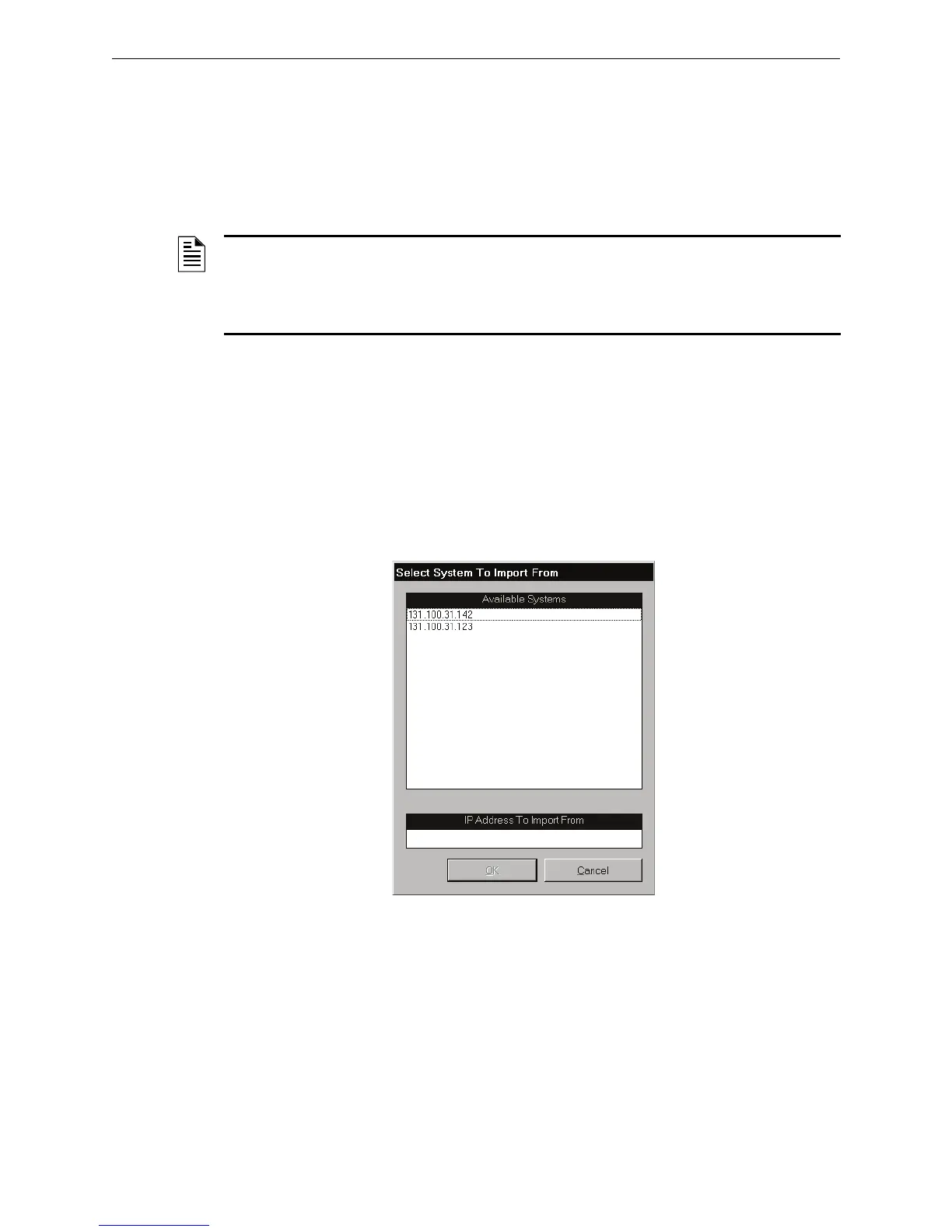
Import System Data... from the list of choices. The Select System To Import From
window displays.
Step 2. Select an entry from the list of choices and then click on the OK button.
Step 3. Exit the Configuration Tool and then select to update the data base.
Figure 3.7 Select System To Import From Window
NOTE: The Workstation must be logged into before any of its settings can be configured. A
User that has the Security Option to configure settings needs to login to change an existing
setting. The factory defined User “Admin” has such an Security Option. Information in this
document is written assuming that a User with the equivalent Security Option of the “Admin” User
will be performing the procedures in this document.



 To Next Page