Red light and speed cameras
NOTICE
Garmin is not responsible for the accuracy of or the consequences of using a red light or speed camera
database.
NOTE: this feature is not available for all regions or product models.
Information about red light and speed camera locations is available in some areas for some product models.
The device alerts you when you approach a reported speed or red light camera.
• In some areas, your device can receive live red light and speed camera data while connected to a
smartphone running the Garmin Drive app.
• You can use the Garmin Express
™
software (garmin.com/express) to update the camera database stored on
your device. You should update your device frequently to receive the most up-to-date camera information.
Finding and saving locations
The maps loaded in your device contain locations, such as restaurants, hotels, vehicle services, and detailed
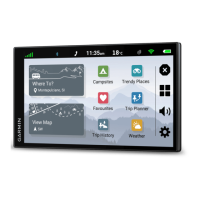
street information. The Where To? menu helps you find your destination by providing several methods to
browse, search, and save this information.
From the main menu, select Where To?.
• To quickly search all locations on your device, select Search (Finding a location using the search bar,
page 5).
• To find an address, select Address (Finding an address, page 6).
• To browse or search pre-loaded points of interest by category, select Categories (Finding a location by
category, page 7).
• To search near a different town or area, select next to the current search area (Changing the search area,
page 7).
• To view and edit your saved locations, select Favourites (Saving Locations, page 11).
• To view locations you have recently selected from the search results, select History (Viewing history,
page 10).
• To navigate to specific geographic coordinates, select Coordinates (Finding a location using coordinates,
page 10).
Finding a location using the search bar
You can use the search bar to search for locations by entering a category, brand name, address or town name.
1 Select Where To?.
2 Select Search in the search bar.
3 Enter all or part of the search term.
Suggested search terms appear below the search bar.
4 Select an option:
• To search for a type of business, enter a category name (for example, "cinemas").
• To search for a business name, enter all or part of the name.
• To search for an address near you, enter the house number and street name.
• To search for an address in another town, enter the house number, street name, town and county.
• To search for a town, enter the town and county.
• To search for coordinates, enter latitude and longitude coordinates.
5 Select an option:
• To search using a suggested search term, select the term.
• To search using the text you entered, select .
6 If necessary, select a location.
Finding and saving locations 5




 To Next Page