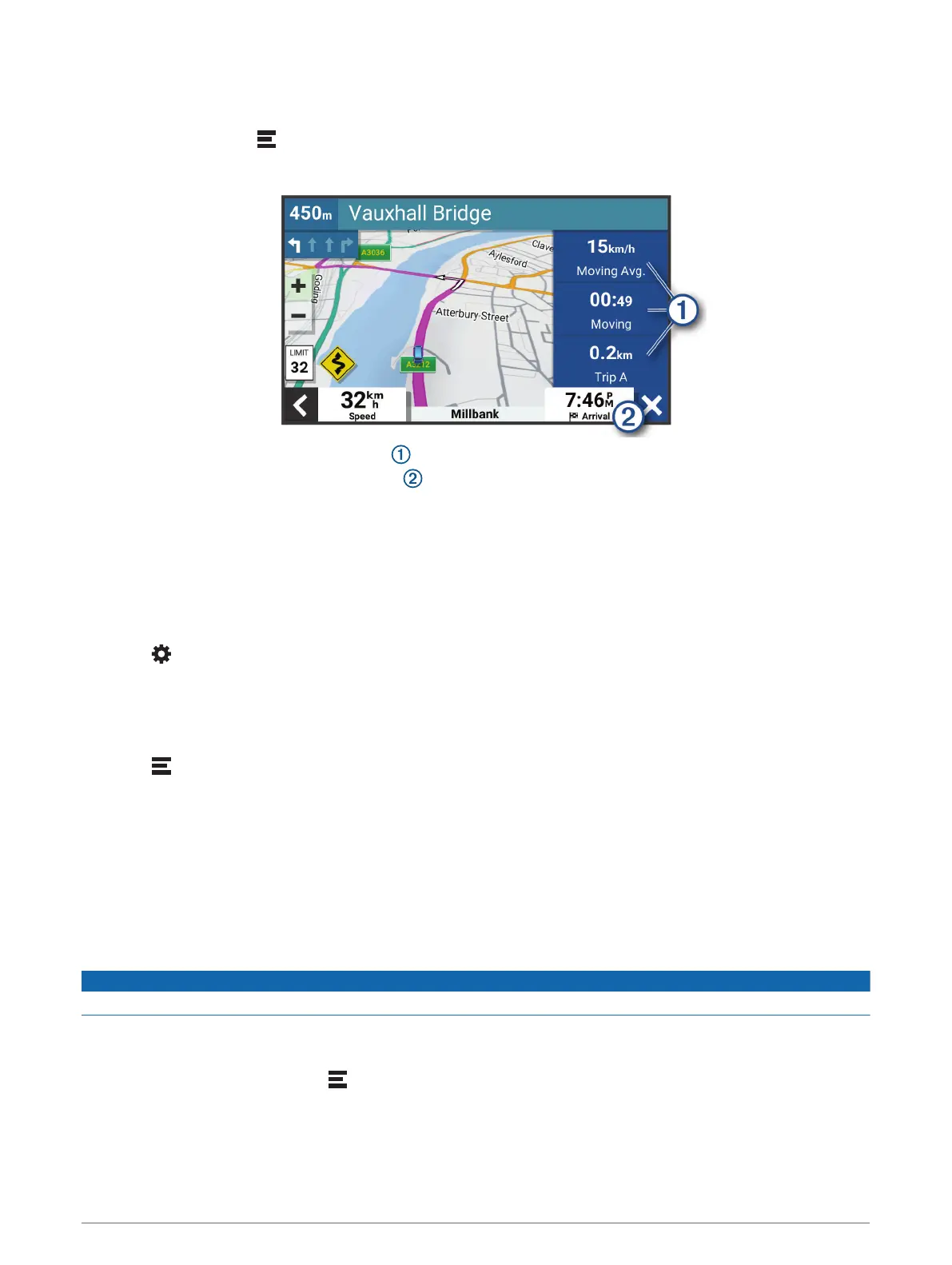
Viewing Customised Trip Information on the Map
You can use the trip data map tool to show customised trip information on the map.
1 From the map, select > Trip Data.
2 Select an option:
• Select a data field in the trip data tool and select the information to show in the field.
• Select the customisable map data field , and select the information to show in the field.
Viewing the trip information page
The trip information page displays your speed and provides statistics about your trip.
From the map, select Speed.
Viewing the trip log
Your device keeps a trip log, which is a record of the path you have travelled.
1 Select > Map Display > Map Layers.
2 Select the Travel History tick box.
Resetting trip information
1 From the map, select Speed.
2 Select > Reset Field(s).
3 Select an option:
• When not navigating a route, select Select All to reset every data field on the first page except the
speedometer.
• Select Reset Overall Data to reset the information on the trip computer.
• Select Reset Max. Speed to reset the maximum speed.
• Select Reset Trip B to reset the odometer.
Viewing upcoming traffic
NOTICE
Garmin is not responsible for the accuracy or timeliness of the traffic information.
Before you can use this feature, your device must be receiving traffic data (Traffic, page 28).
You can view traffic incidents coming up along your route or along the road on which you are travelling.
1 While navigating a route, select > Traffic.
The nearest upcoming traffic incident appears in a panel on the right side of the map.
2 Select the traffic incident to view additional details.
22 Using the Map




 To Next Page