Receiving traffic data using a traffic receiver
NOTICE
Heated (metallised) windscreens could degrade the performance of the traffic receiver.
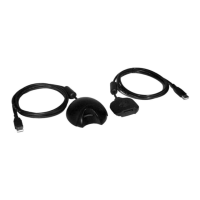
A traffic receiver receives traffic data from an over-the-air broadcast signal, where available. To receive over-
the-air traffic data, the device must be connected to vehicle power using a traffic-compatible power cable. A
traffic receiver is included with some product models (Traffic, page 28). If your product model does not include
a traffic receiver, you can go to your product page at garmin.com to find and purchase a compatible traffic
receiver cable accessory.
Traffic data is not available in all areas. For information about traffic coverage areas, go to garmin.com/traffic.
Connect the device to vehicle power using the traffic-compatible power cable (Mounting and powering the
CamperVan device in your vehicle, page 2).
If your product model includes traffic data, the vehicle power cable included with your device is traffic-
compatible. If you purchased a traffic receiver cable as an accessory, you should use the accessory cable to
connect the device to vehicle power.
When you are within a traffic coverage area, your device can display traffic information and help you avoid
traffic delays.
Traffic Receiver Subscriptions
A regional traffic data subscription is included with most traffic receivers. You can add subscriptions for
additional regions to your traffic receiver. For more information, go to garmin.com/traffic.
Viewing traffic subscriptions
Select > Traffic > Subscriptions.
Adding a subscription
You can purchase traffic subscriptions for other regions or countries.
1 Select > Traffic.
2 Select Subscriptions > .
3 Write down the FM traffic receiver unit ID.
4 Go to garmin.com/fmtraffic to purchase a subscription and get a 25-character code.
The traffic subscription code cannot be reused. You must obtain a new code each time you renew your
service. If you own multiple FM traffic receivers, you must obtain a new code for each receiver.
5 Select Next on the device.
6 Enter the code.
7 Select Done.
Enabling traffic
Before you can enable traffic, you must connect your device to a compatible traffic receiver cable (Receiving
traffic data using your smartphone, page 28).
You can enable or disable traffic data.
1 Select > Traffic.
2 Select the Traffic tick box.
Viewing traffic on the map
The traffic map shows colour-coded traffic flow and delays on nearby roads.
1 From the main menu, select > Traffic.
2 If necessary, select > Legend to view the legend for the traffic map.
Traffic 29




 To Next Page