Using the Map
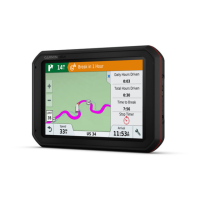
You can use the map to navigate a route (Your route on the map, page 15) or to view a map of your
surroundings when no route is active.
1 Select View Map.
2 Select anywhere on the map.
3 Select an option:
• Drag the map to pan left, right, up, or down.
• To zoom in or out, select or .
• To switch between North Up and 3-D views, select .
• To open the route planner, select (Route Planner, page 32).
• To filter the displayed points of interest by category, select .
• To start a route, select a location on the map and select Go! (Starting a route by using the map, page 14).
Map Tools
Map tools provide quick access to information and device functions while you view the map. When you activate
a map tool, it appears in a panel at the edge of the map.
Stop: stops navigation of the active route.
Edit Route: allows you to re-route or skip locations in your route (Changing Your Active Route, page 17).
Mute Navigation: mutes the device audio.
Towns Ahead: shows upcoming towns and services along your active route or along a highway (Towns Ahead,
page 21).
Up Ahead: shows upcoming locations along the route or the road on which you are travelling (Up ahead,
page 20).
Elevation: displays elevation changes ahead.
Traffic: displays traffic conditions along your route or in your area (Viewing upcoming traffic, page 22). This
feature is not available in all areas or for all device models.
Trip Data: displays customisable trip data, such as speed or mileage (Viewing trip data from the map,
page 21).
Turns: displays a list of upcoming turns in your route (Viewing turns and directions, page 16).
Phone: displays a list of recent phone calls from your connected phone, and displays in-call options while a
phone call is active (Using in-call options, page 27).
Weather: displays weather conditions for your area.
photoLive: displays live traffic cameras from your photoLive subscription (photoLive traffic cameras, page 34).
Report Safety Camera: allows you to report a speed or red light camera. This tool is available only when you
have speed or red light camera data on your device and you have an active connection to the Garmin Drive
app (Live services, traffic and smartphone features, page 23).
Viewing a map tool
1 From the map, select .
2 Select a map tool.
The map tool appears in a panel at the edge of the map.
3 When you have finished using the map tool, select .
Up ahead
The Up Ahead tool provides information about upcoming locations along your route or the road on which you
are travelling. You can view upcoming points of interest by category, such as restaurants, fuel stations or
roadside services.
You can customise the categories that show in the Up Ahead tool.
20 Using the Map




 To Next Page