My device does not connect to my phone
• Select > Wireless Networks.
The Bluetooth option must be enabled.
• Enable Bluetooth wireless technology on your phone and bring your phone within 10 m (33 ft.) of the device.
• Verify your phone is compatible.
Go to www.garmin.com/bluetooth for more information.
• Complete the pairing process again.
To repeat the pairing process, you must unpair your phone and device (Deleting a paired phone, page 28) and
complete the pairing process (Live services, traffic and smartphone features, page 23).
Appendix
Installing a memory card for maps and data
You can install a memory card to increase the storage space for maps and other data on your device. You can
purchase memory cards from an electronics supplier, or go to www.garmin.com/maps to purchase a memory
card with pre-loaded Garmin mapping software. The device supports microSD memory cards from 4 to 32 GB.
1 Locate the map and data memory card slot on your device (CamperVan device overview, page 1).
2 Insert a memory card into the slot.
3 Press it in until it clicks.
Data management
The device has a memory card slot for additional data storage.
NOTE: the device is compatible with Windows 7 and newer, and Mac OS 10.7 and newer.
About memory cards
You can purchase memory cards from an electronics supplier, or purchase pre-loaded Garmin mapping
software (www.garmin.com). Memory cards can be used to store files such as maps and custom POIs.
Connecting the Device to Your Computer
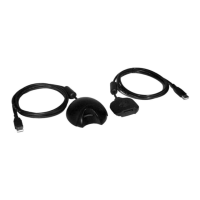
You can connect the device to your computer using a USB cable.
1 Plug the small end of the USB cable into the port on the device.
2 Plug the larger end of the USB cable into a port on your computer.
3 When your CamperVan device prompts you to enter file transfer mode, select Yes.
A picture of your device connected to a computer appears on the device screen.
Depending on your computer operating system, the device appears as either a portable device, a removable
drive, or a removable volume.
Transferring data from your computer
1 Connect the device to your computer (Connecting the Device to Your Computer, page 45).
Depending on your computer operating system, the device appears as either a portable device, a removable
drive or a removable volume.
2 On your computer, open the file browser.
3 Select a file.
4 Select Edit > Copy.
5 Browse to a folder on the device.
NOTE: for a removable drive or volume, you should not place files in the Garmin folder.
6 Select Edit > Paste.
Appendix 45




 To Next Page