Removing the Device from the Mount
1 Grip the device by the top and bottom.
2 Pull the bottom edge of the device towards you until it releases from the magnet.
Pulling the device straight towards you may cause the mount to release from the suction cup.
Removing the Mount from the Suction Cup
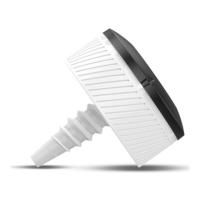
1 Turn the device mount to the right or left.
2 Apply pressure until the socket on the mount releases the ball on the suction cup.
Removing the Suction Cup from the Windscreen
1 Flip the lever on the suction cup towards you.
2 Pull the tab on the suction cup towards you.
Troubleshooting
The suction cup will not stay on my windscreen
1 Clean the suction cup and windscreen with surgical spirit.
2 Dry with a clean, dry cloth.
3 Mount the suction cup (Mounting and powering the CamperVan device in your vehicle, page 2).
My device is not acquiring satellite signals
• Verify the GPS simulator is turned off (Navigation settings, page 37).
• Take your device out of car parks and away from tall buildings and trees.
• Remain stationary for several minutes.
The device does not charge in my vehicle
• Verify that the vehicle is turned on and is supplying power to the power outlet.
• Verify that the interior temperature of the vehicle is within the charging temperature range indicated in the
specifications.
• In the vehicle fuse box, verify that the fuse for the vehicle power outlet is not broken.
My battery does not stay charged for very long
• Decrease the screen brightness (Display settings, page 38).
• Shorten the display timeout (Display settings, page 38).
• Decrease the volume (Adjusting the volume, page 3).
• Turn off the Wi-Fi radio when it is not in use (Wireless network settings, page 38).
• Put the device in power saving mode when not in use (Turning the device on or off, page 2).
• Keep your device away from extreme temperatures.
• Do not leave your device in direct sunlight.
44 Troubleshooting




 To Next Page