Pairing Your Smartphone with Your Device
To use the connected features of the Forerunner
device, it must be paired directly through the
Garmin Connect app, instead of from the
Bluetooth
®
settings on your smartphone.
1 From the app store on your smartphone,
install and open the Garmin Connect app.
2 Bring your smartphone within 10 m (33 ft.) of
your device.
3 Select LIGHT to turn on the device.
The first time you turn on the device, it is in
pairing mode.
TIP: You can hold LIGHT, and select to
manually enter pairing mode.
4 Select an option to add your device to your
Garmin Connect account:
• If this is the first time you are pairing a
device with the Garmin Connect app,
follow the on- screen instructions.
• If you already paired another device with
the Garmin Connect app, from the or
menu, select Garmin Devices > Add
Device, and follow the on-screen
instructions.
Tips for Existing Garmin Connect Users
1 From the Garmin Connect app, select or .
2 Select Garmin Devices > Add Device.
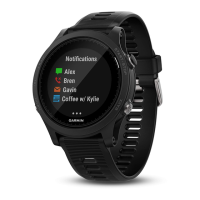
Enabling Bluetooth Notifications
Before you can enable notifications, you must
pair the Forerunner device with a compatible
mobile device
(
Pairing Your Smartphone with Your
Device, page 1
).
1 From the watch face, hold UP.
2 Select Settings > Phone > Smart Notifications >
Status > On.
3 Select During Activity.
4 Select a notification preference.
5 Select a sound preference.
6 Select Not During Activity.
7 Select a notification preference.
8 Select a sound preference.
9 Select Timeout.
10 Select the amount of time the alert for a
new notification appears on the screen.
1




 To Next Page