Garmin and other providers using the Connect IQ
website. You can customize your device with watch
faces, data fields, widgets, and apps.
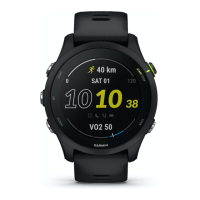
Watch Faces: Allow you to customize the appearance
of the clock.
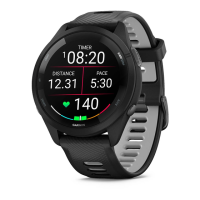
Data Fields: Allow you to download new data fields
that present sensor, activity, and history data in
new ways. You can add Connect IQ data fields
to built-in features and pages.
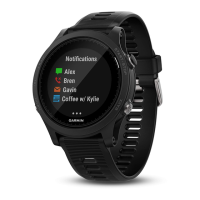
Widgets: Provide information at a glance,
including sensor data and notifications.
Apps: Add interactive features to your watch, such as
new outdoor and fitness activity types.
Downloading Connect IQ Features Using Your
Computer
1 Connect the device to your computer using a
USB cable.
2
Go to
Garmin.com.sg/products/apps
, and sign in.
3 Select a Connect IQ feature, and download it.
4 Follow the on-screen instructions.
Wi-Fi Connected Features
Activity uploads to your Garmin Connect account:
Automatically sends your activity to your Garmin
Connect account as soon as you finish recording
the activity.
Audio content: Allows you to sync audio content
from third-party providers.
Software updates: Your device downloads and installs
the latest software update automatically when a
Wi-Fi connection is available.
Workouts and training plans: Allows you to browse
for and select workouts and training plans on
the Garmin Connect site. The next time your
device
has a WiFi connection, the files are wirelessly sent
to your device.
Connecting to a Wi-Fi Network
You must connect your device to the Garmin
Connectapp on your smartphone or to the Garmin
Express application on your computer before you can
connect to a Wi-Fi network.
To sync your device with a third-party music provider, you
must connect to Wi-Fi. Connecting the device to a Wi-Fi
network also helps to increase the transfer speed of larger
files.
1 Move within range of a Wi-Fi network.
2 From the Garmin Connect app, select or .
3 Select Garmin Devices, and select your device.
4 Select General > Wi-Fi Networks > Add a Network.
5 Select an available Wi-Fi network, and enter the
login details.




 To Next Page