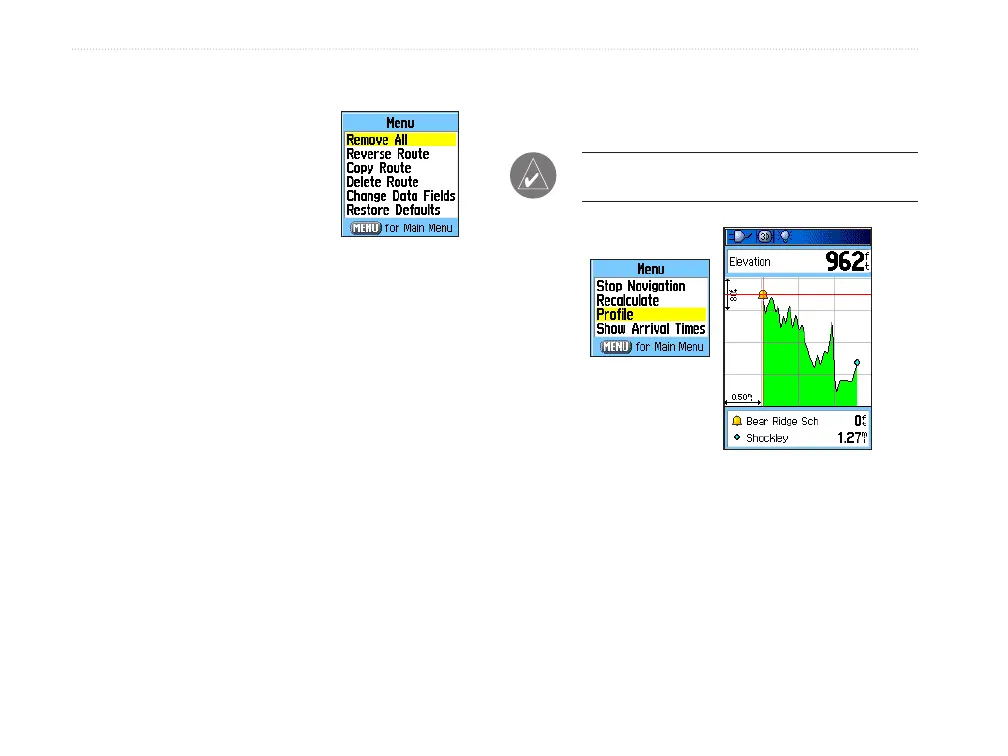
• Reverse Route—reverses the order of the route
points in the saved route.
• Prole—creates a vertical
prole of the route.
• Copy Route
—makes a
copy of the saved route
with the same name, but
followed by a number.
• Delete Route
—deletes the saved route.
• Change Data Fields
—selects different values
for the two data elds at the bottom of the page.
• Restore Defaults
—restores route settings to
the factory default.
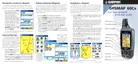
Vertical Proles of routes
The Prole Page can show a prole of a route when
using Digital Elevation Model US Topo maps.
To create a vertical prole of the route:
1. Open the Routes Page from the Main Menu,
select a saved route or create a new route and
then press the Menu key.
2. Select “Prole” and press ENTER to display
the route prole, answer the “use data” prompt
and press ENTER.
NOTE: Proles are available only if Garmin
MapSource U.S. DEM Topo map data is used.
Route Vertical Prole
using US DEM Topo
mapping data
Options Menu
Options Menu
36 GPSMAP 60Cx Owner’s Manual
bAsIc oPerAtIon > creAtIng And usIng routes












 To Next Page