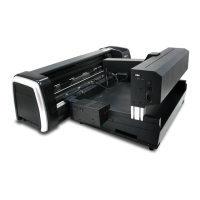
3.2 PARALLEL TRANSMISSION
3.2.1 Connecting to the Parallel Port (Centronics)
1. Connect a parallel cable to the cutting plotter and the host computer (Figure3-1).
2. Set up the output port LPT1 or LPT2 from your software package
3. Send the data to your cutting plotter directly. Or, use DOS commands like TYPE
or PRINT to output data.
3.3 SERIAL TRANSMISSION
3.3.1 Connecting to the Serial Port (RS-232C)
1. For PC users, please connect the RS-232C cable to the serial connector of the
assigned serial port (COM1 or COM2) of your host computer.
2. Set up the communication parameters (Baud Rate, Data Bits/Parity and Stop Bits)
to match the setting on the computer.
3.3.2 Transmitting the Data to Plotter
There are two options to transmit the data from the computer to the cutting plotter:
Option 1
With proper interface settings, the data can be transmitted from your application
software package to the cutting plotters directly.
Option 2
Most cutting software packages are able to emulate HP-GL or HP-GL/2 commands,
therefore, Use DOS commands like TYPE or PRINT to output your file. As long as the
file is HP-GL or HP-GL/2 format, the cutting plotter can output the data precisely.
For example, a file with PLT extension generated by SignPal software, FlexiSign or
SignLab can be transmitted directly to the plotter at the DOS prompt, and then be cut
out. Before outputting at the DOS prompt, set up a transmission protocol between
your cutting plotter and computer by a DOS command, MODE. Make sure that your
PC has the same communication protocol as the cutter. For example:
MODE COM2: 9600,N, 8,1,P
Then, use TYPE command to output via COM2 if COM2 is the assigned output port.
Puma II Users manual 3-2



 To Next Page