Skype setup and use
15
Creating a new Skype account
If you do not have a Skype account, you need to create one before you can sign in to
Skype. You can create a new Skype account using your computer, or you can do so on
your GE 31591 phone.
Skype name can be 6-32 characters. You can use any mix of upper- and lower-case
characters, numbers and punctuation marks. You cannot use spaces and your name
cannot begin with a number or punctuation mark. If the name is already in use, you
will be prompted to try another name.
Passwords can be 6-20 characters. You can use any mix of upper- and lower-case
characters, numbers and punctuation marks. You cannot use spaces, your password
cannot begin with a number or punctuation mark, and you cannot use your Skype
name as a password.
For more information on entering Skype name and password, refer to the Character
table for Skype section on page 22.
To create a new Skype account on your phone:
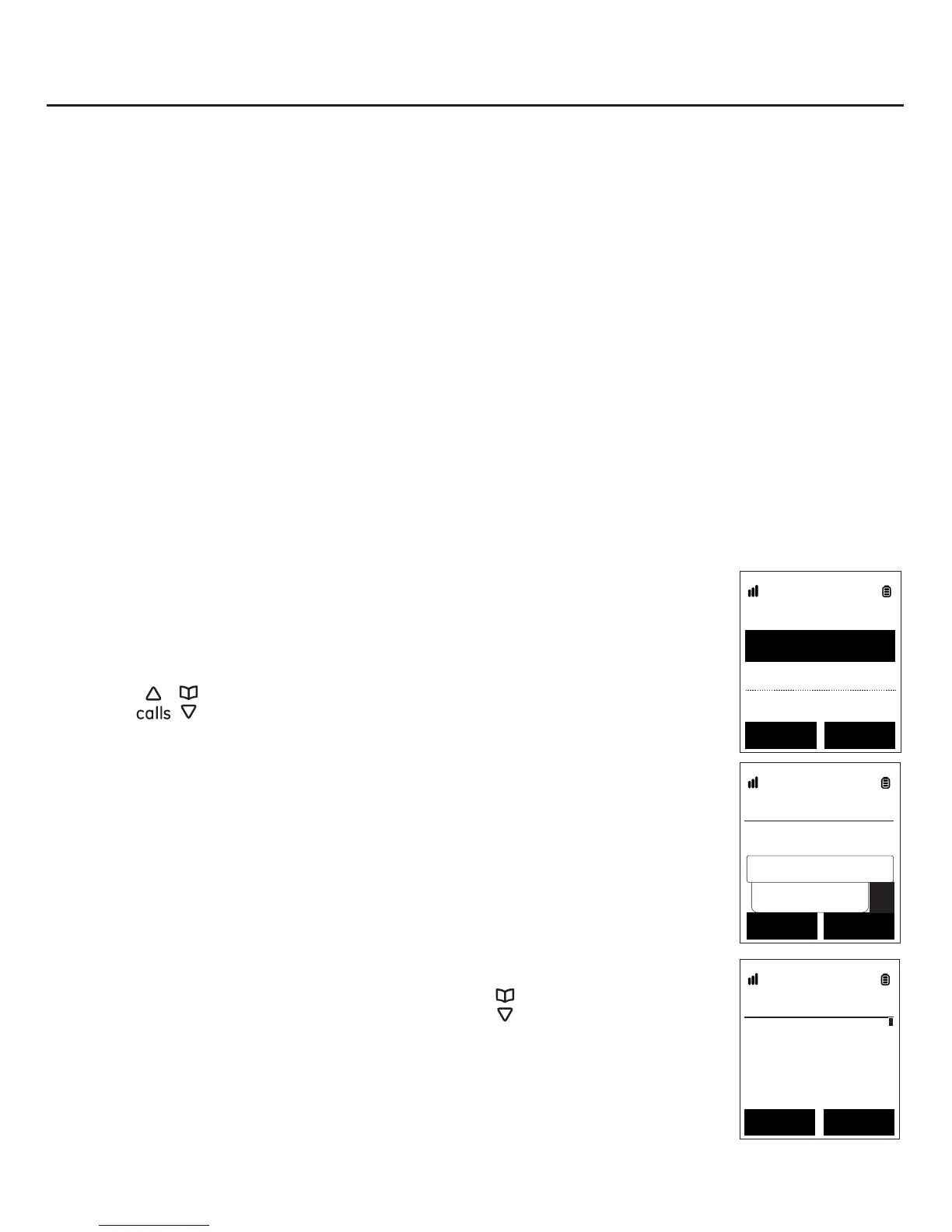
1. Press the Sign In softkey. You see two options:
Sign in to Skype - sign in to Skype using an existing Skype
account.
Create new account - sign in to Skype by creating a new Skype
account.
2. Press
/ to select Create new account, and then press the
Select softkey.
3. Enter the new Skype username, and then press the OK softkey.
4. Enter the new Skype password, and then press the OK softkey.
5. Re-enter the password in step 4, and then press the OK softkey.
If Skype does not accept your user name and password, you will
get a message “failed !” You will need to try another combination
of user name and password that meet Skype’s requirements and
has not already been used by another user.
6. The following message will appear: (press
to view the entire
“No emergency calls. Skype is not a replacement for your
ordinary telephone and cannot be used for emergency calling.
I have read and accept Skype’s terms and conditions at www.
skype.com/eula, www.skype.com/tos and in my device user guide”.
New account
Skype name
smith_00001
OK
Clear
A
Sign In
Create new accoun
Sign in to Skype
Select
Back
Agreement
No emergency
calls, Skype
is not a
DeclineAccept
Skype setup and use


 To Next Page