Entering characters
21
You can enter text and numbers for handset names, Skype ID names, and phonebook
contact names. Note that the handset names can be up to 20 characters, Skype ID
names can be up to 32 characters, and phonebook contact names can be up to 50
characters.
The phone supports a set of characters that you can choose from the dial keypad.
However, Skype supports only a subset of the characters supported by the phone.
When you are working with Skype, less characters are available to you on the phone.
Entering text and numbers
To enter text and numbers using the dial keypad:
1. Find the key on the dial keypad with the desired character.
2. Press the key as many times as needed to display the desired character.
3. Press the OK
NOTES:
1. To delete a character to the left of the cursor, press the Clear softkey.
2. To delete all the characters displayed on the screen, press and hold the Clear softkey.
Example: Entering the word “PAUL”
Press 7 once P
Press 2 once A
Press 8 twice U
Press 5 three times L
Switching input modes
There are three input modes: uppercase
A
, lowercase
a
, and numeric
1
.
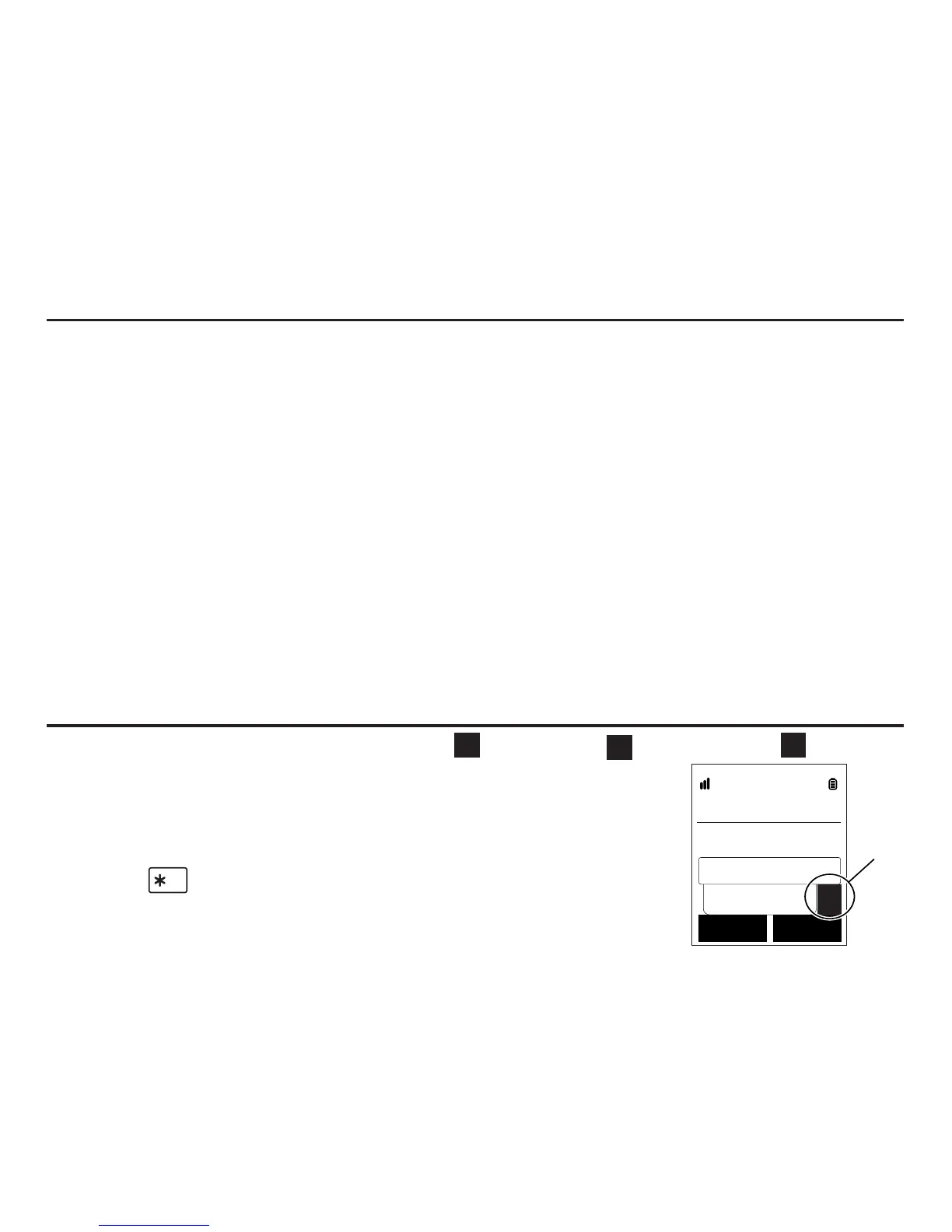
The input mode indicator is located at the lower left corner of
the screen when you input text or numbers.
By default, all characters entered will be in uppercase. You
can press
aA
to switch between uppercase, lowercase, and
numeric characters.
NOTE: The lower righthand corner displays the method you have currently
selected: A for uppercase, a for lowercase, and 1 for numeric mode.
Entering characters
New account
Skype name
smith_00001
OK
Clear
A
Input
mode


 To Next Page