Handset settings
24
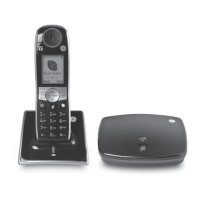
Scrolling the handset
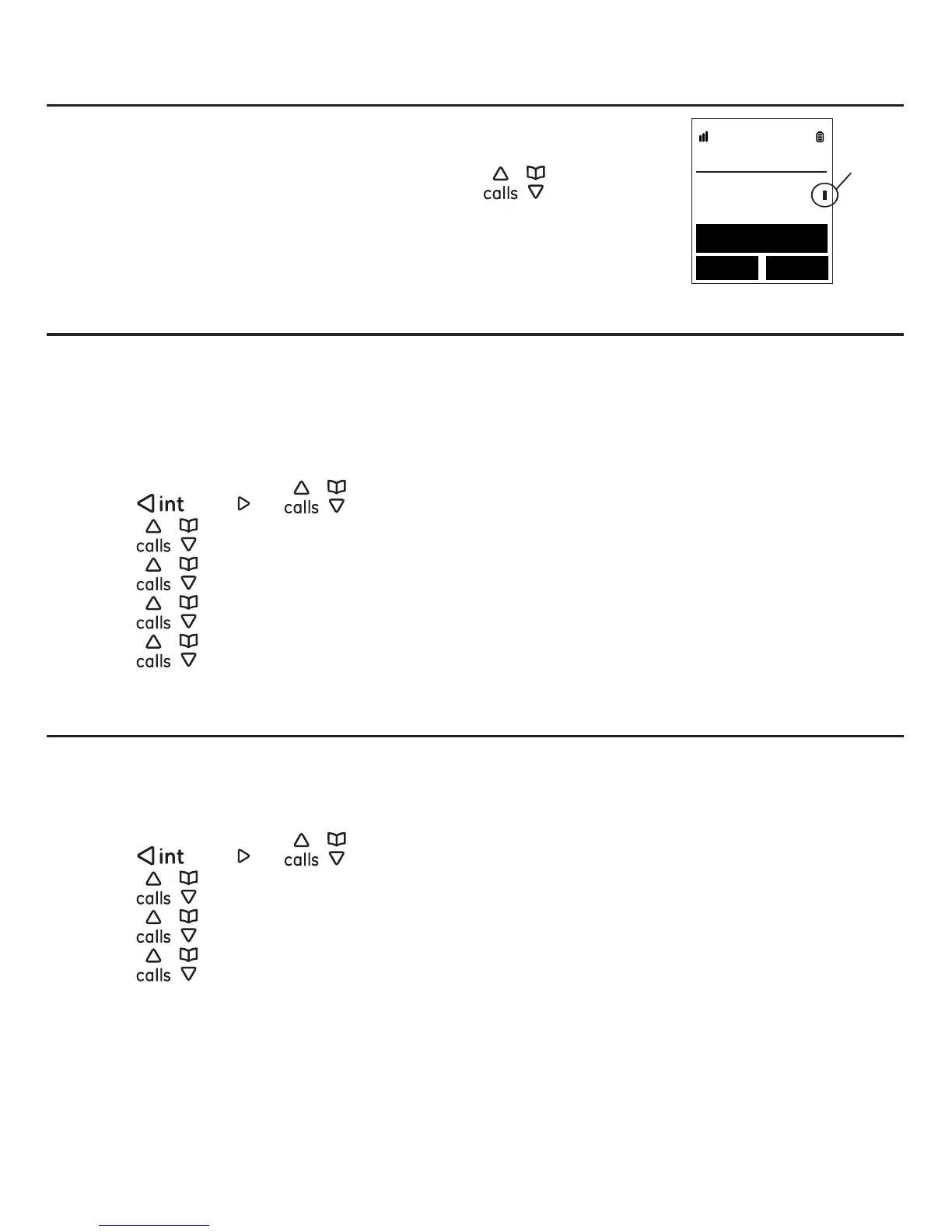
The scrollbar appears when there is more information available
to view.
You can naviagte the scroll bar by pressing
/ .
The scroll bar is always on the righthand side of the screen. It
moves up and down as you navigate the screen.
Setting the ringtone
You can set the ringtone for 3 kinds of calls: Skype calls, Regular calls, and Intercom.
ringtone for each will help determine which type of call is received without looking at
the display of the GE 31591.
1. Press the Menu softkey.
2. Press
/
redial
or / to select Settings, and then press the Select softkey.
3. Press
/ to select Sounds, and then press the Select softkey.
4. Press
/ to select Ringtone, and then press the Select softkey.
5. Press
/ to select the desired call type, and then press the Select softkey.
6. Press
/ to select the desired ring tone, and then press the Select softkey.
7. The screen displays “Successful”. Press the OK softkey.
Setting the ring volume
You can set the handset ringer volume from Volume 0Volume 5 or to
Ascending.
1. Press the Menu softkey.
2. Press
/
redial
or / to select Settings, and then press the Select softkey.
3. Press
/ to select Sounds, and then press the Select softkey.
4. Press
/ to select Ring volume, and then press the Select softkey.
5. Press
/ to select the desired ring volume, and then press the Select softkey.
6. The screen displays “Successful”. Press the OK softkey.
Handset settings
Settings
Phone
Sounds
BackSelect
Display
Scroll
bar


 To Next Page