page | 118
Using Syner-G
The Syner-G™ Software Suite provides an easy way to perform rmware updates.
Before launching Syner-G™, makre sure that a USB cable is connected between the
product and the computer that is running the Syner-G™ software. Refer to the Syner-G™
Software Suite User Manual for more information on using other features with this product.
1. Power OFF the 4x1 DVI KVM Multiview Switcher by disconnecting the power supply.
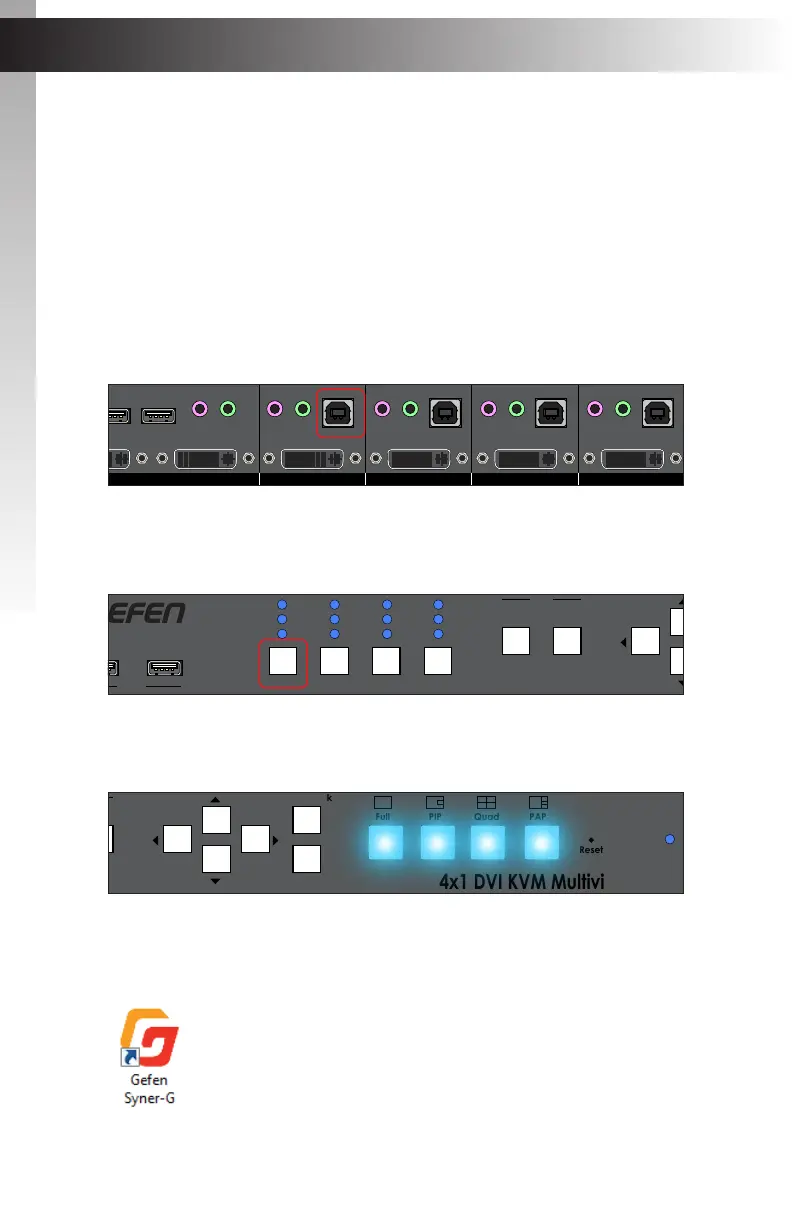
2. Connect a USB cable, from the computer running Syner-G™, to the USB Host
port of the Source 1 input.
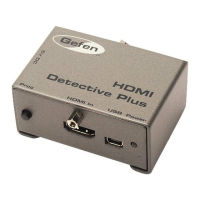
3. Press and hold the Source 1 button on the front panel while reconnecting the power
supply.
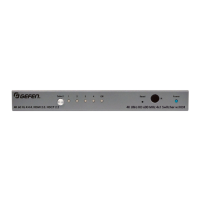
4. The display mode buttons will ash.
5. Launch the Syner-G™ Software Suite from the Start Menu or using the shortcut
from the Windows Desktop.
Appendix
Updating the Firmware
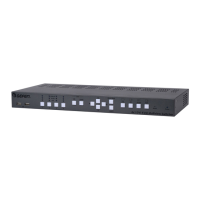
4x1 DVI KVM Multiview Switcher
Menu/Back
Select
USB
Video B
Audio
USB
USB 1 2 3 4
Audio
Full PIP Quad
Reset Power
PAP
®
USB
Source 1 Source 2 Source 3 Source 4
EXT-DVIK-MV-41
RS-232 In12V DCMain RS-232 Out
Keyboard Mouse Mic L/R Out Mic L/R In USB Host Mic L/R In USB Host Mic L/R In USB Host Mic L/R In USB Host
Video A DVI-D Video B DVI-D DVI-D In DVI-D In DVI-D In DVI-D In
USB USB
Workstation
4x1 DVI KVM Multiview Switcher
Menu/Back
Select
USB
Video B
Audio
USB
USB 1 2 3 4
Solo
Audio
Full PIP Quad
Reset
PAP
®
USB USB
Source 1 Source 2 Source 3 Source 4
EXT-DVIK-MV-41
RS-232 In12V DCMain RS-232 Out
Keyboard Mouse Mic L/R Out Mic L/R In USB Host Mic L/R In USB Host Mic L/R In USB Host Mic L/R In USB Host
Video A DVI-D Video B DVI-D DVI-D In DVI-D In DVI-D In DVI-D In
USB USB
Workstation
4x1 DVI KVM Multiview Switcher
Menu/Back
Select
USB
Video B
Audio
USB
USB 1 2 3 4
Solo
Audio
Full PIP Quad
Reset Power
PAP
®
USB USB
Source 1 Source 2 Source 3 Source 4
EXT-DVIK-MV-41
RS-232 In12V DCMain RS-232 Out
Keyboard Mouse Mic L/R Out Mic L/R In USB Host Mic L/R In USB Host Mic L/R In USB Host Mic L/R In USB Host
Video A DVI-D
Video B DVI-D DVI-D In DVI-D In DVI-D In DVI-D In
USB
Appendix


 To Next Page