Setting Preferred Networks
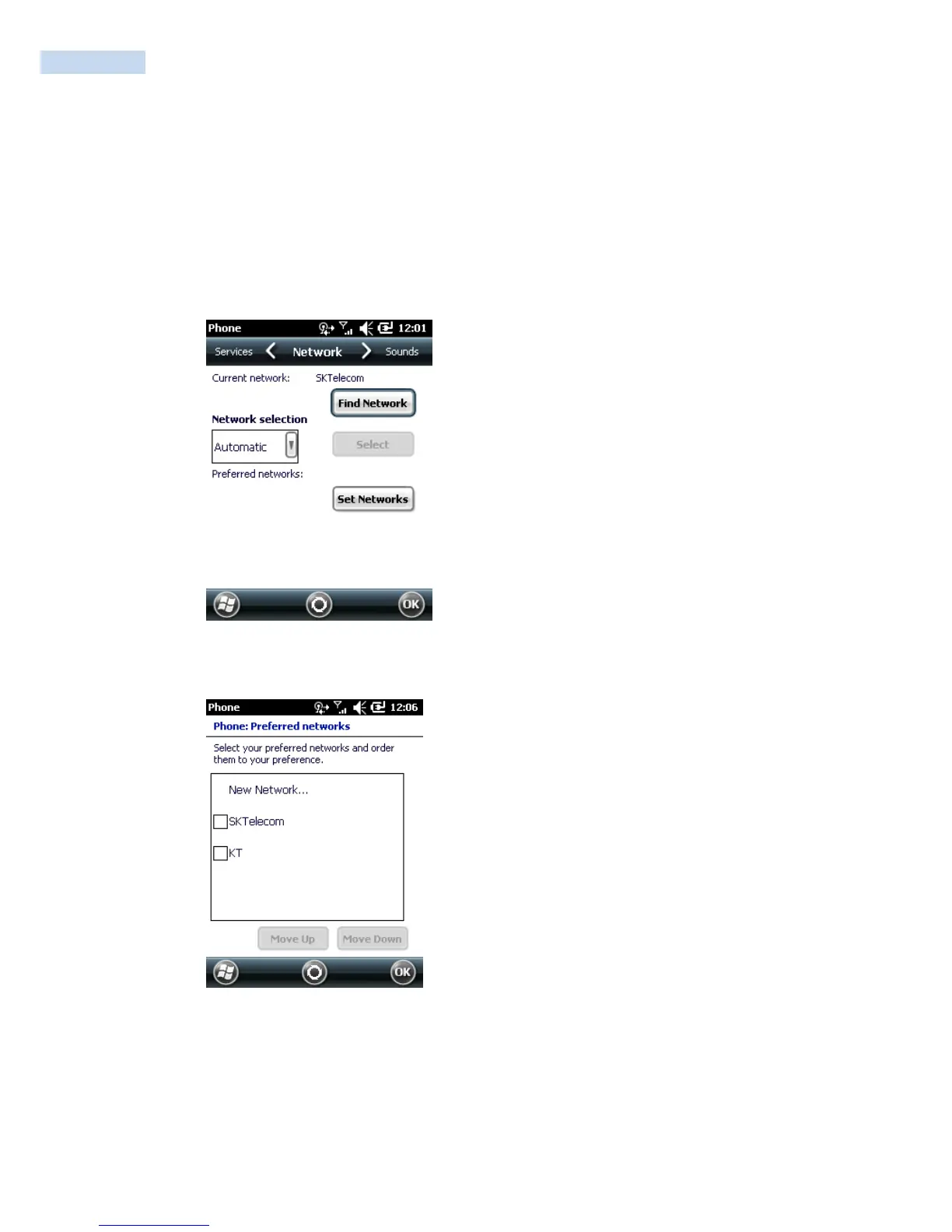
Set networks in a preferred order of access. Setting preferred networks allows the RP1200 to access a second
preferred network if the first is unavailable.
1. Tap Start
>
Settings
>
Personal tab
>
Phone icon > Network tab
or
Start
>
Phone
>
Menu
>
Options > Network tab.
Phone Window - Network Tab
2. Tap Set Networks to view all available networks.
Preferred Networks
3. Select the preferred networks by tapping one or more check boxes.
4. Tap Move Up and Move Down, as necessary, to place the selected networks in the preferred order.
5. Tap ok to send the new settings to the network.
6. From the Network tab, select Automatic from the Network selection drop-down list.
7. Tap ok to exit settings.



 To Next Page