Connecting the RP1200 Using WIFI Communications
Make sure all components with antennas are at least 30 cm (1 ft.) apart when power is applied.
Failure to comply could result in equipment damage.
Your RP1200 has an 802.11 radio to transfer data using wireless communications. This section assumes that
your wireless network is set up, including your access points.
To configure 802.11 radio parameters
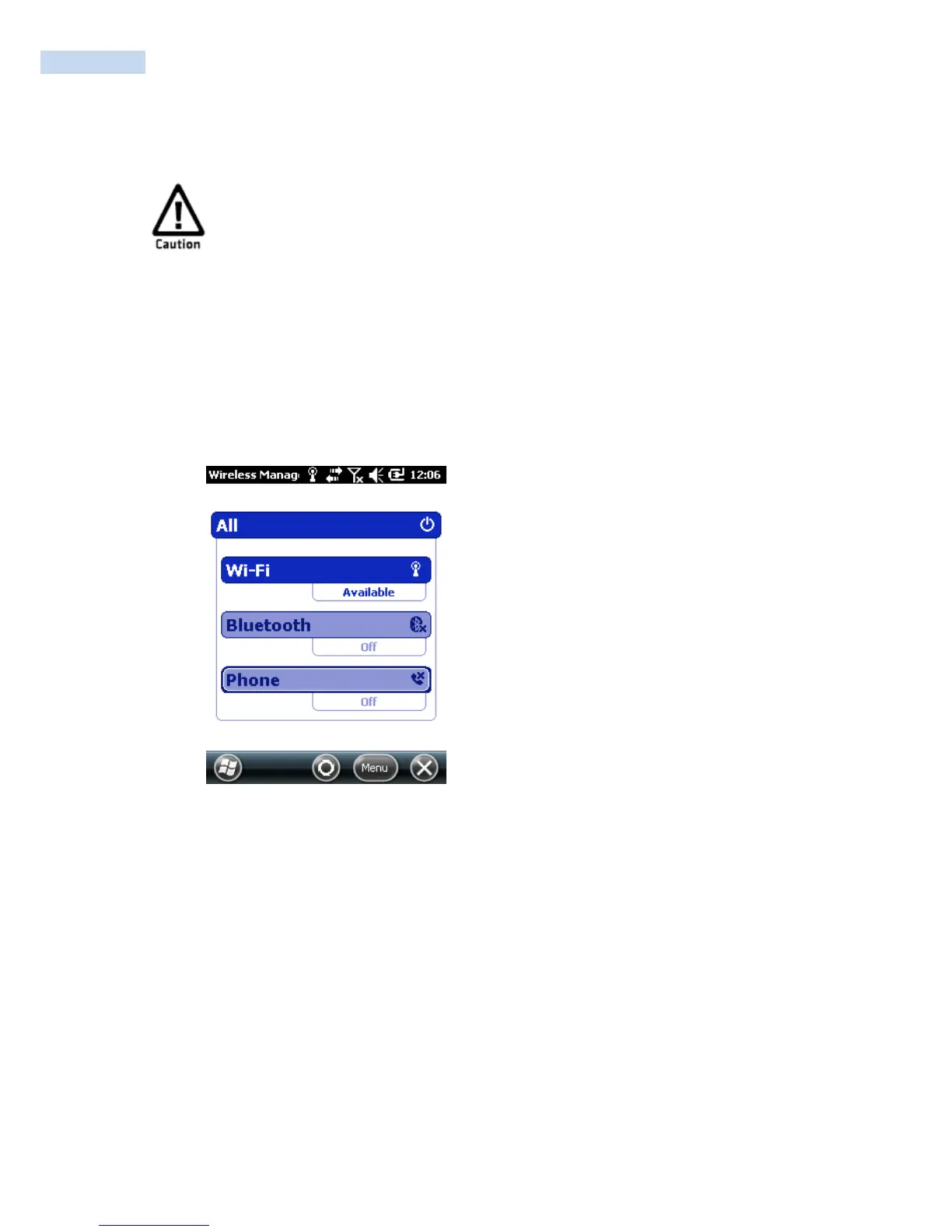
1. Tap Start > Settings > Connections > Wireless Manager > WI-FI status is changed to ON.
2. Menu > Wi-Fi Settings. The Configure Wireless Networks page appears.
3. If the Network you want to connect to is available in the wireless networks list, tap the network
name and proceed to Step 4.
If the Network you want to connect to is not in the wireless networks list:
Tap Add New.
In the Network Name field, type in the name of your network and then tap Next. The Configure
Network Authentication page appears.
4. From the Authentication list, choose either Open, Shared, WPA, WPA-PSK, WPA2, or WPA-PSK.
• If you choose Open or Shared, Data Encryption is automatically set to WEP and the key is
automatically provided.
• If you choose WPA, Data Encryption is automatically set to TKIP.
• If you choose WPA2, Data Encryption should be set to AES.



 To Next Page