Configuring a Data Connection
Connecting to an ISP
You can connect to your Internet Service Provider (ISP), and use the connection to send and receive e-mail
messages and view web pages.
Get an ISP dial-up access telephone number, a user name, and a password from your ISP.
Tap the Help icon at any time to view additional information for the wizard or the settings.
To connect to an Internet service provider
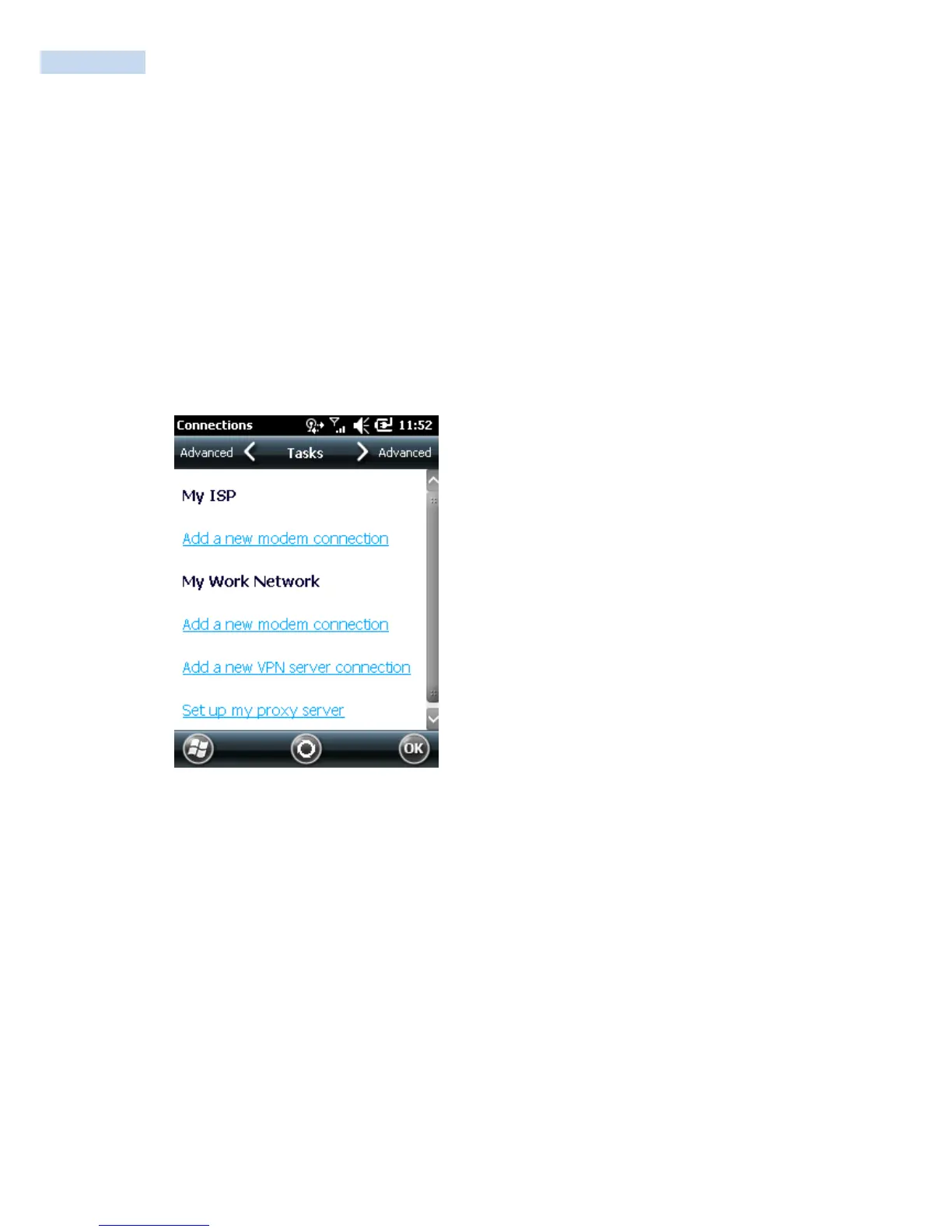
1 Tap Start > Settings > Connections > Connections.
2 Under My ISP, tap Add a new modem connection.
3 Enter a name for the connection, such as “ISP Connection.”
4 If using an external modem connected to your RP1200 with a cable, select Hayes Compatible on
COM1 from the Select a modem drop-down list.
5 Tap Next.
6 Enter the access phone number and then tap Next.
7 Enter the User name, Password, and Domain (if provided by an ISP or your network administrator).
8 Tap Finish.
9 Tap the Advanced tab from the Connections screen and then tap Dialing Rules.
10 Select Use dialing rules, tap ok at the dialog box, and then tap Edit.
11 Specify your current phone type and then tap ok until you exit and return to the Settings page.
Once the RP1200 is connected, you can:
• send and receive message by using Messaging (Outlook E-mail).
• visit web pages by using Internet Explorer Mobile.



 To Next Page