Using the Stylus
Your computer has a stylus for selecting items and entering information on the touch screen.
Functions You Can Perform With the Stylus
Touch the screen once with the stylus to select options, open or close applications,
or launch menus from the Command bar.
Hold the stylus on the screen and drag across the screen to select text and images.
Tap and hold the stylus on an item to see a menu of actions available for that item.
On the pop-up menu that appears, tap the action you want to perform.
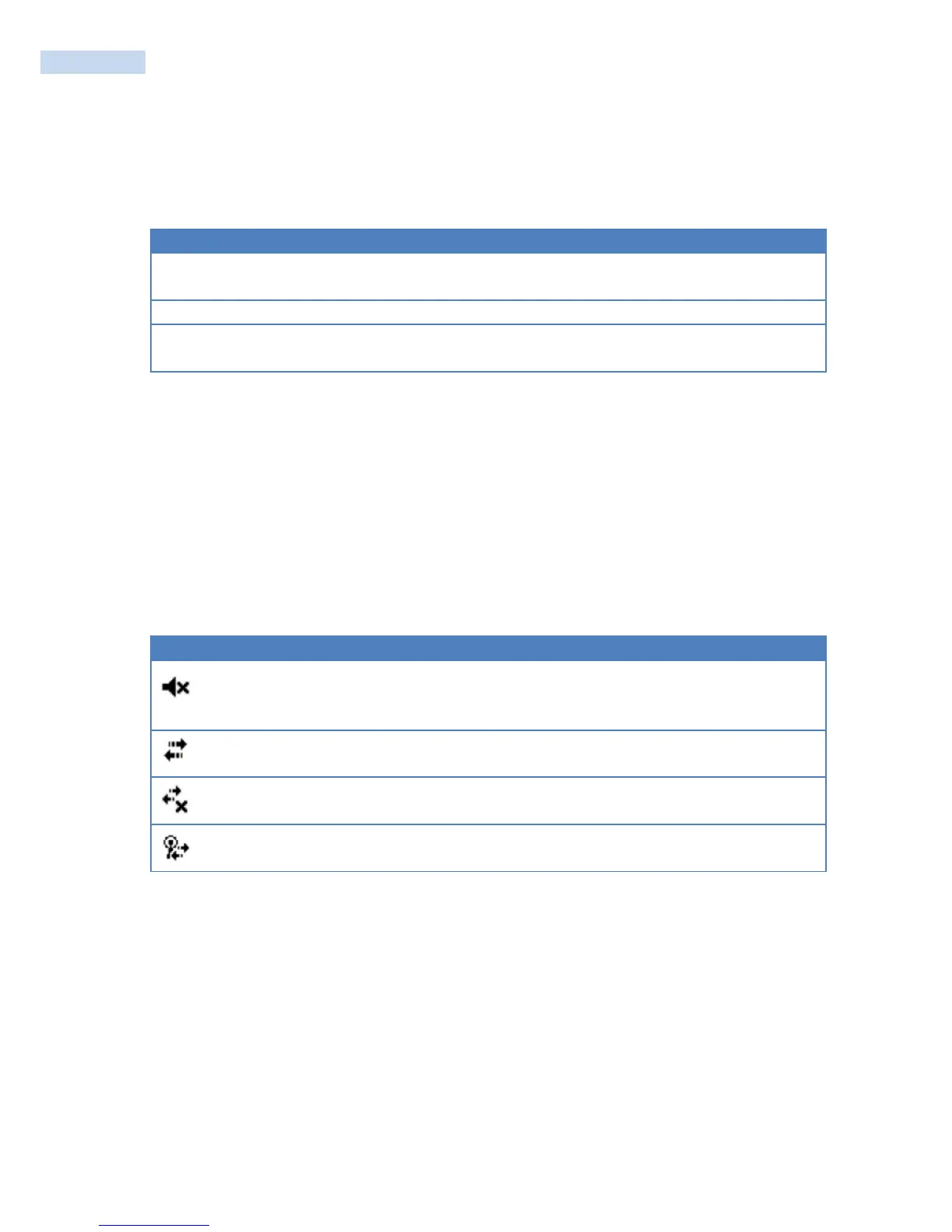
Understanding the Screen Icons
Use the screen icons on the navigation bar and the command bar to see the network connection status and
other system information. For information about the battery icons, see “Checking the Battery Status”. Some
standard Microsoft icons are included in this table.
Screen Icons
The volume is turned off. To turn the volume back on, tap this icon
and choose your setting.
The computer is connected to the network.
The computer is not connected to the network.
The 802.11 radio is connected to the wireless network.



 To Next Page