Aligning the Touch Screen
If the touch screen does not respond when you tap it with the stylus, you may need to calibrate the screen.
Before you calibrate the touch screen, make sure the RP1200 screen is unlocked.
To calibrate the touch screen
1 Tap Start > Settings > Systems > Screen.
2 Tap Align Screen and follow the instructions to align the screen.
3 Click ok.
If the touch screen is so out of alignment that you cannot open the Start menu, you may need to align the
screen menu using only the keypad.
Rotating the Screen
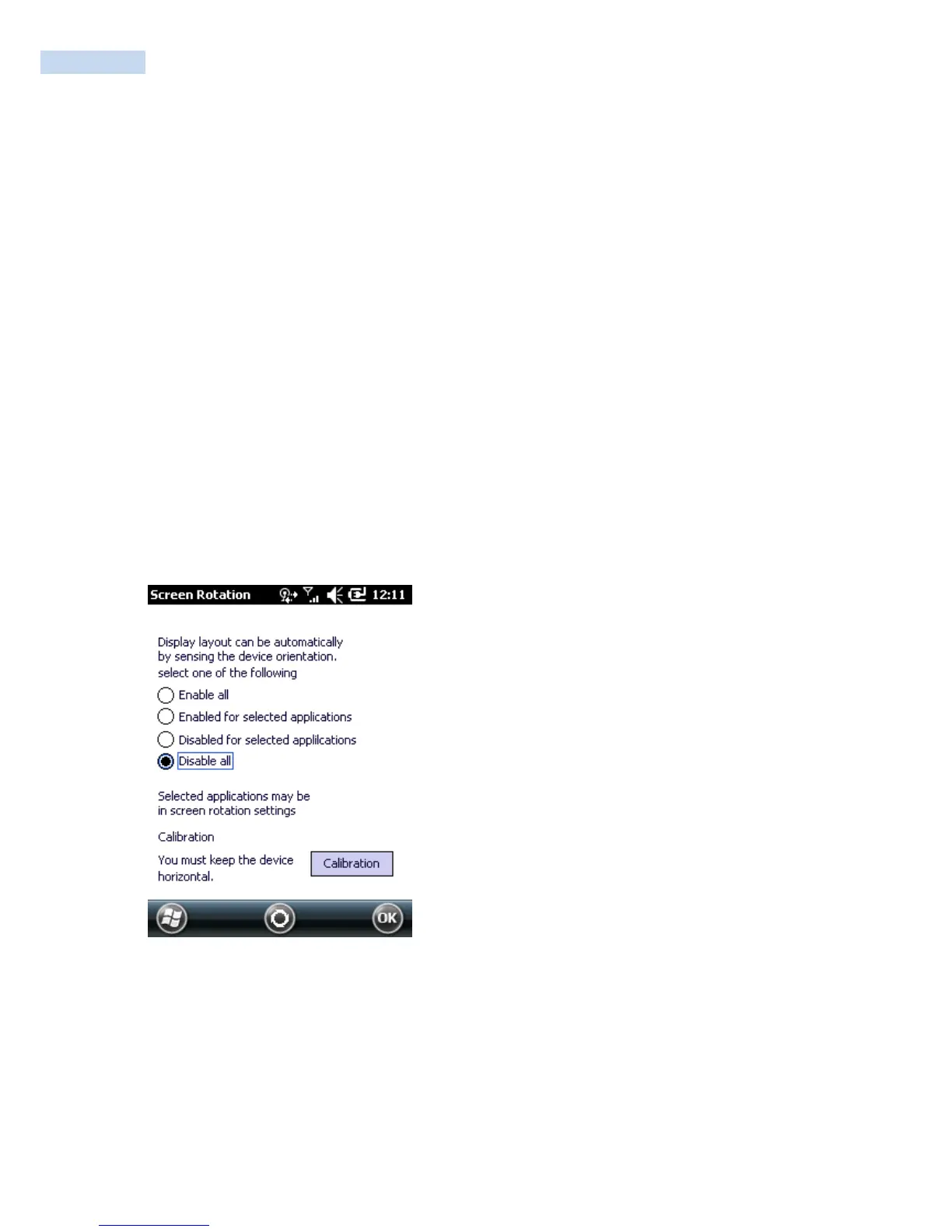
The internal accelerometer enables you to have the screen rotate by sensing the orientation of the RP1200.
You can enable the screen to rotate all the time depending on orientation, you can enable it to rotate for
specific applications, you can disable rotation for selected applications, or you can disable it.
To configure the screen rotation
1. Tap Start > Settings > Systems > TAS Config.
2. Calibration
3. Select the option (“Enable all”) you want to use.



 To Next Page