Camera is optional. On the device with no built-in camera, Camera function can not be used.
To take a picture with the camera
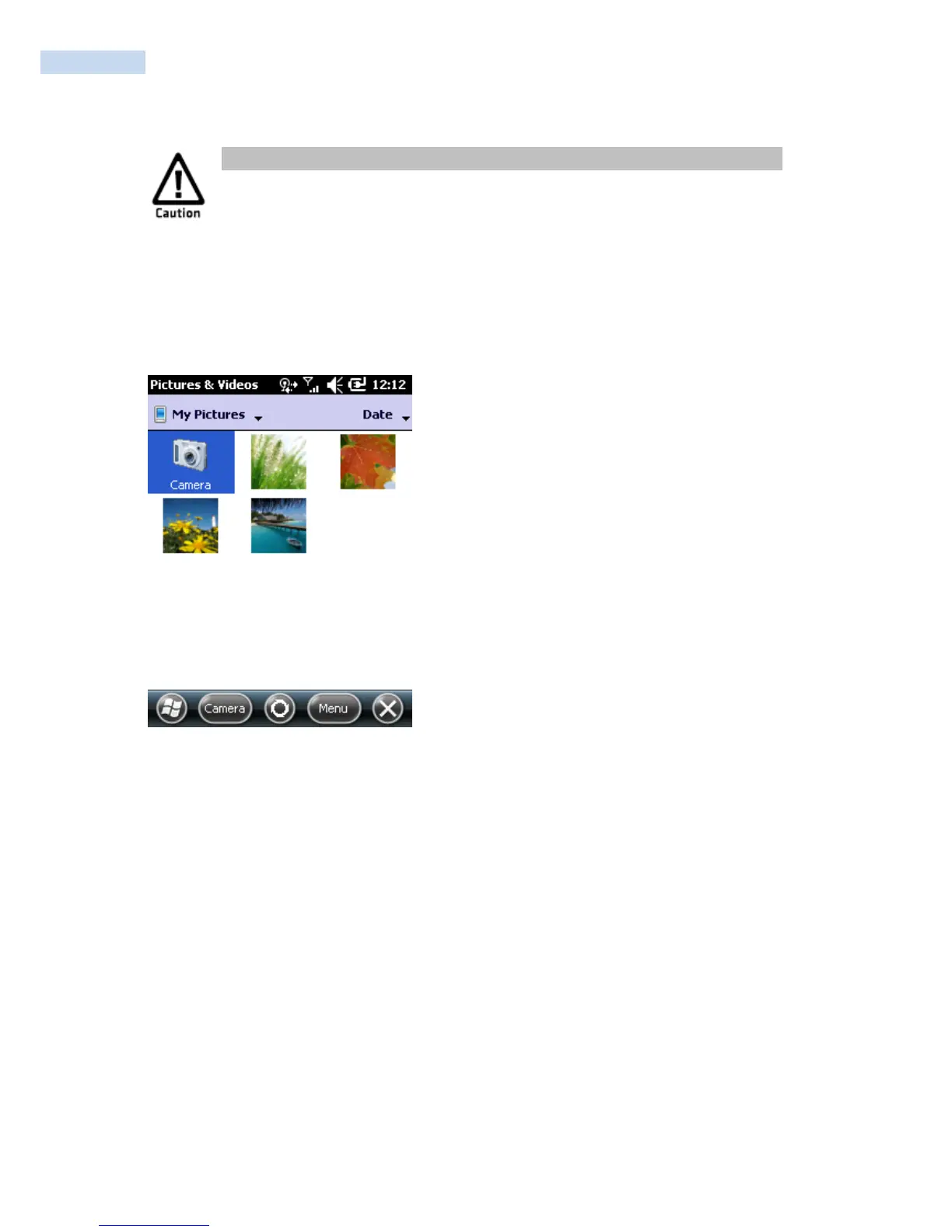
1 Tap Start > Pictures & Videos.
2 Tap the Camera icon in the grid, or tap Camera on the taskbar.
3 Using the screen as a viewfinder, move the camera until you have the image you want to capture.
4 Tap Take Pic on the taskbar or press Enter to save the image. If you select to save your pictures to Main
memory, they are saved to permanent storage on the RP1200.
5 Auto Focus: Press and hold “Enter” key for 2~3 sec. till you hear sound “Tik” and then release the key.
To switch to Video mode
• Tap Menu > Video Mode.
The camera icon below the screen turns into a video camera and Record now appears in the taskbar.



 To Next Page