English
-19-
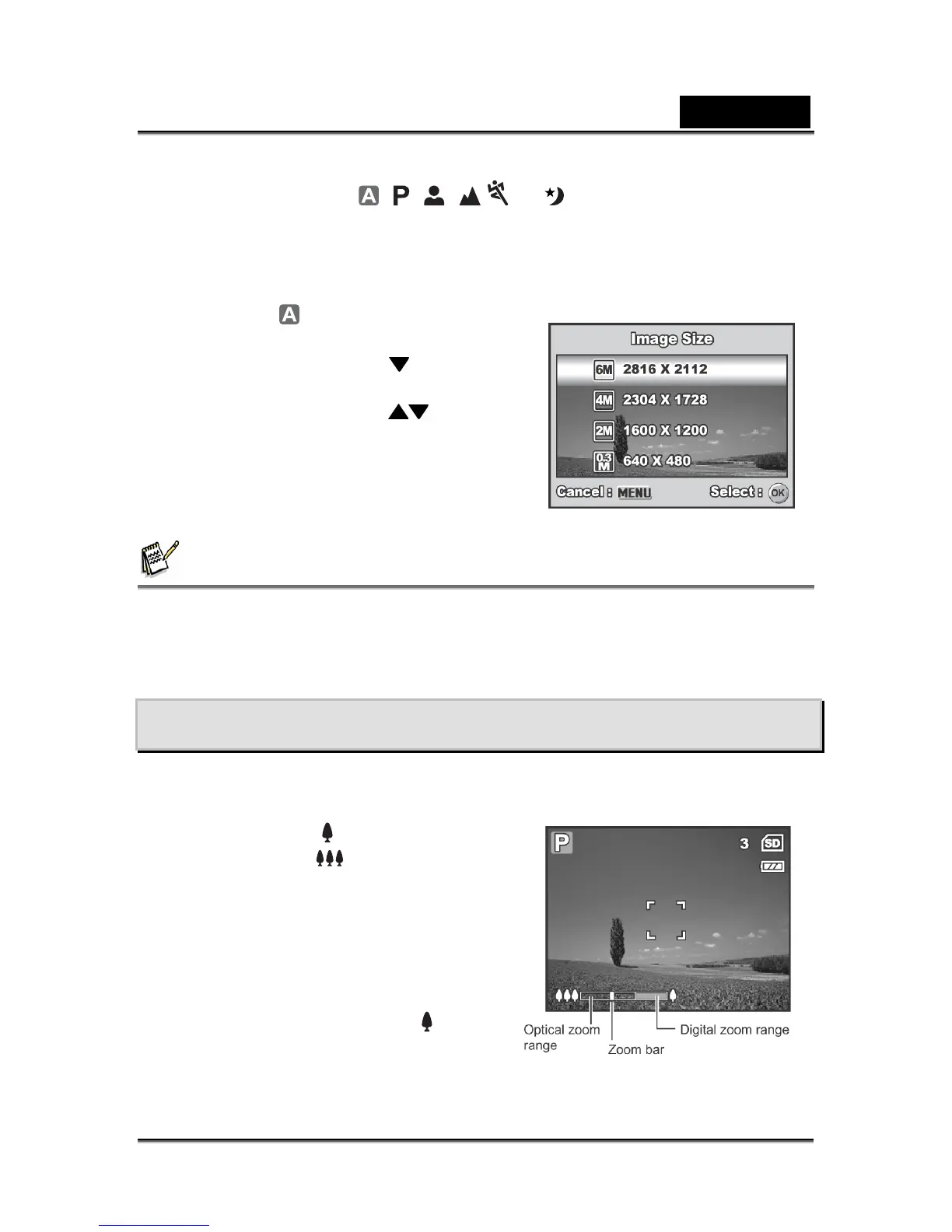
To change image resolution or image quality, perform these steps below:
1. Rotate the mode dial to
, , , , or and turn your camera on by
pressing the power switch.
2. Press the MENU button.
[Mode1] is displayed.
In the mode, [Auto] is
displayed.
3. Use the four-way controller (
) to select
[Image Size], then press the OK button.
4. Use the four-way controller (
)) to select
the desired setting, then press the OK
button to confirm.
5. Follow steps 3 and 4 above to set the
[Quality].
NOTE
The possible number of shots and recording time depend on the storage size, resolution
and quality settings and the subject of the image to be captured.
You can resize the images later. Please refer to the section “Resizing an Image” for
further detail.
Using the Zoom Function
This camera is equipped with 3x optical zoom. The lens moves during the optical
zoom photography, allowing you to capture telephoto and wide-angle shots. By using
the optical zoom function, images appear
closer by pressing the
button, or smaller
away by pressing the
button.
The zoom bar indicates the current level of
magnification. When the digital zoom is
within 3x magnification, the zoom bar is
within the optical zoom range. When the
digital zoom function is set to On, you can
further enlarge the subjects with 4x digital
zoom by pressing continuously the
button. It is activated after your camera
reaches its maximum optical zoom factor
(3x) and the zoom bar is within the digital zoom area.



 To Next Page