English
-31-
2. Press the button.
The last recorded image/movie clip
appears on the LCD monitor screen.
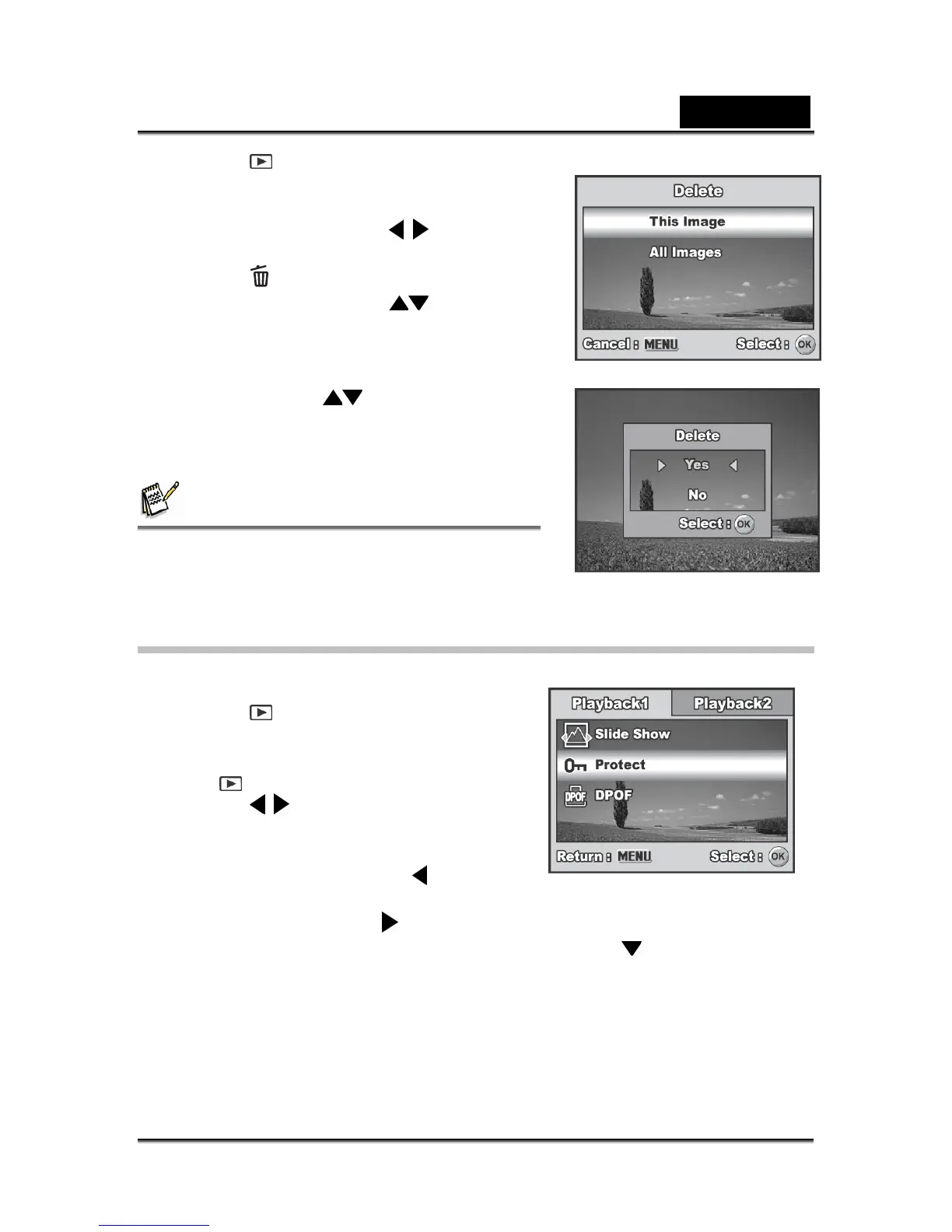
3. Use the four-way controller (
) to select the
image/movie clip you want to delete.
4. Press the
button to delete.
5. Use the four-way controller (
) to select
[This Image] or [All Images you’re your
preference, then press the OK button.
6. When the delete message appears, use the
four-way controller (
) to select [Yes], then
press the OK button to confirm the deletion.
If you wish to cancel the deletion, select
[No].
NOTE
Protected images cannot be deleted with the delete
function.
Protecting Images/Movie Clips
Set the data to read-only to prevent images
from being erased by mistake.
1. Press the
button.
The last recorded image appears on
the LCD monitor screen.
2. In the
mode, use the four-way
controller (
) to select the desired
images.
To view the previous image, press
the four-way controller (
).
To view the next image, press the
four-way controller (
).
3. Press the MENU button, then use the four-way controller (
) to select [Protect]
and press the OK button.



 To Next Page