English
-28-
press the OK button.
3. Use the four-way controller (
) to set
the playback interval, then press the OK
button.
The slideshow starts.
The movie clips display the first
frame image, and the movie is not
played back.
To stop slideshow, press the OK
button.
NOTE
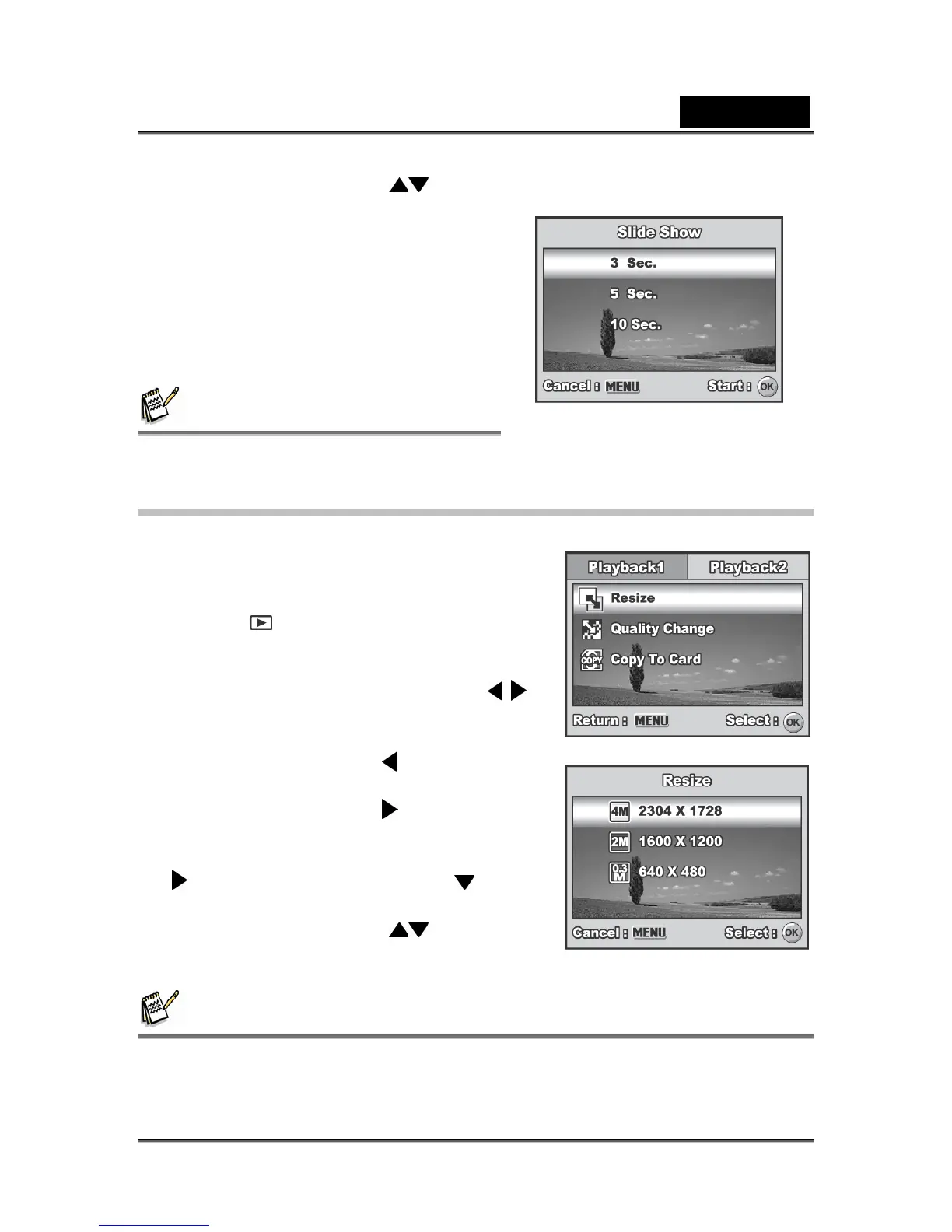
You can adjust the slideshow display interval within the range of 3 sec., 5 sec., 10 sec..
Resizing an Image
You can change the image size of a captured
image to one of the following sizes:
2304 x 1728 pixel, 1600 x 1200 pixel and 640 x
480 pixel.
1. Press the
button.
The last recorded image appears on
the LCD monitor screen.
2. In the mode, use the four-way controller (
)
to select the desired images.
To view the previous image, press the
four-way controller (
).
To view the next image, press the
four-way controller (
).
3. Press the MENU button to access the
Playback menu. Press the four-way controller
(
) to select [Playback2] and press ( ) to
select [Resize] and press the OK button.
4. Use the four-way controller (
) to select
the desired setting, then press the OK button
to confirm.
NOTE
You can only choose a smaller size image; you cannot increase the resolution of an
image.
Movies cannot be resized.



 To Next Page