77
7.3 Device
Allows you to customize your GolfBuddy’s welcome screen with
images or logos that will appear each time your GolfBuddy is powered
on, and allows you to type in your user information (name/phone
number). Also allows you to perform software updates as they become
available.
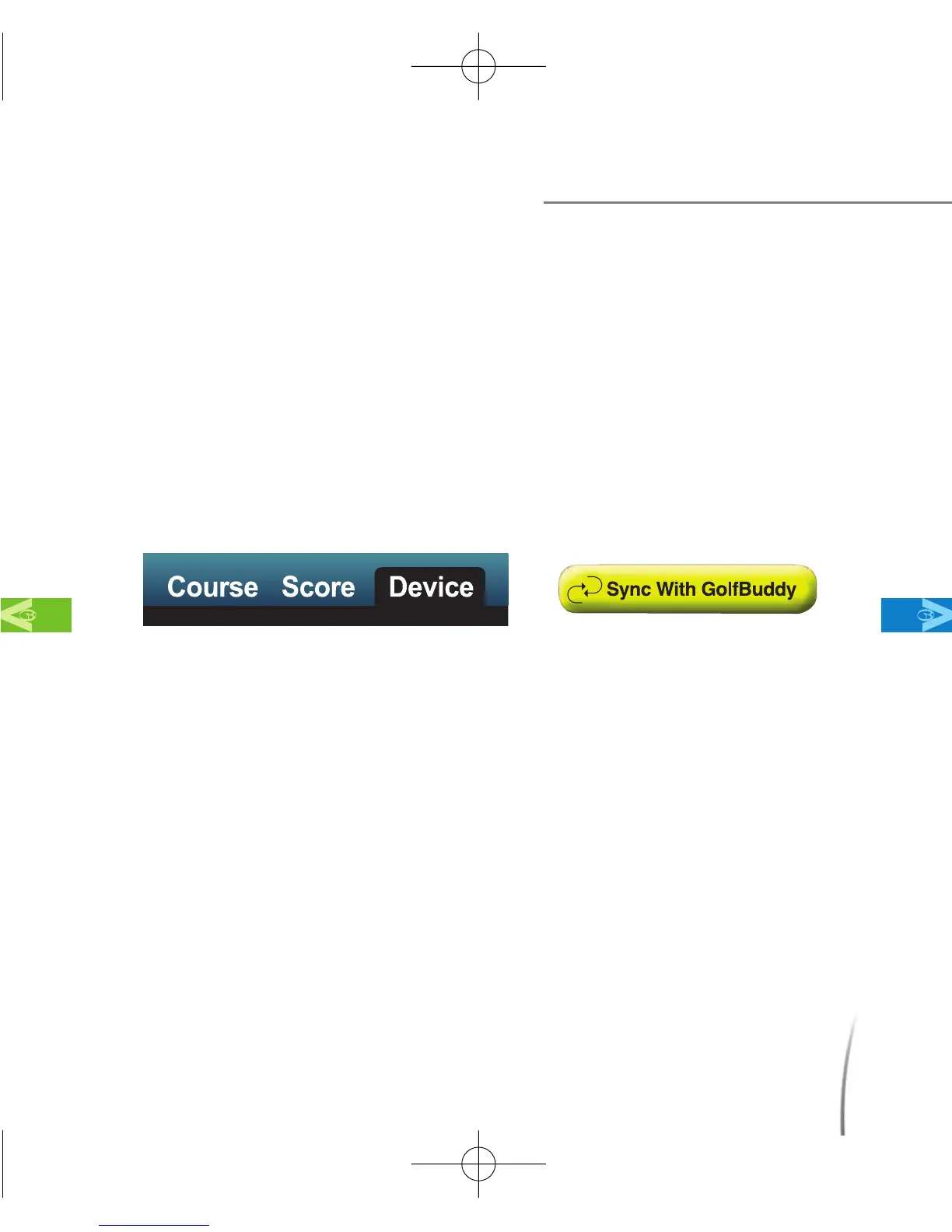
7.3.1 Click on the “Device” tab (fig. 69) in the GB Manager, then click
“Sync with GolfBuddy” (fig. 70)
7.3.2 Adding Images to the Welcome Screen - You may add up to
three images that will appear each time your GolfBuddy unit is
powered on.
7.3.2.1 On the “User Info” window on the left, (fig. 71) click on folder icon
next to the “My Logo” drop menu. (fig. 72) Once you click on the
icon, a search window will appear over the GB Manager window.
(fig. 73) Choose a picture from your computer’s s hard drive and
Using the GB Manager
MainContentsChapter 7
fig. 69 fig. 70
CDManualE 2009.7.17 4:32 PM 페이지77



 To Next Page