-21-
To View Existing Patient Data:
1. Double-click the Patient ID of the record you wish to view.
2. Use the tabs along the left side of the Patient Information window to view General, Treatment
History, and RigiScan tabs.
To View Existing RigiScan Monitoring Data:
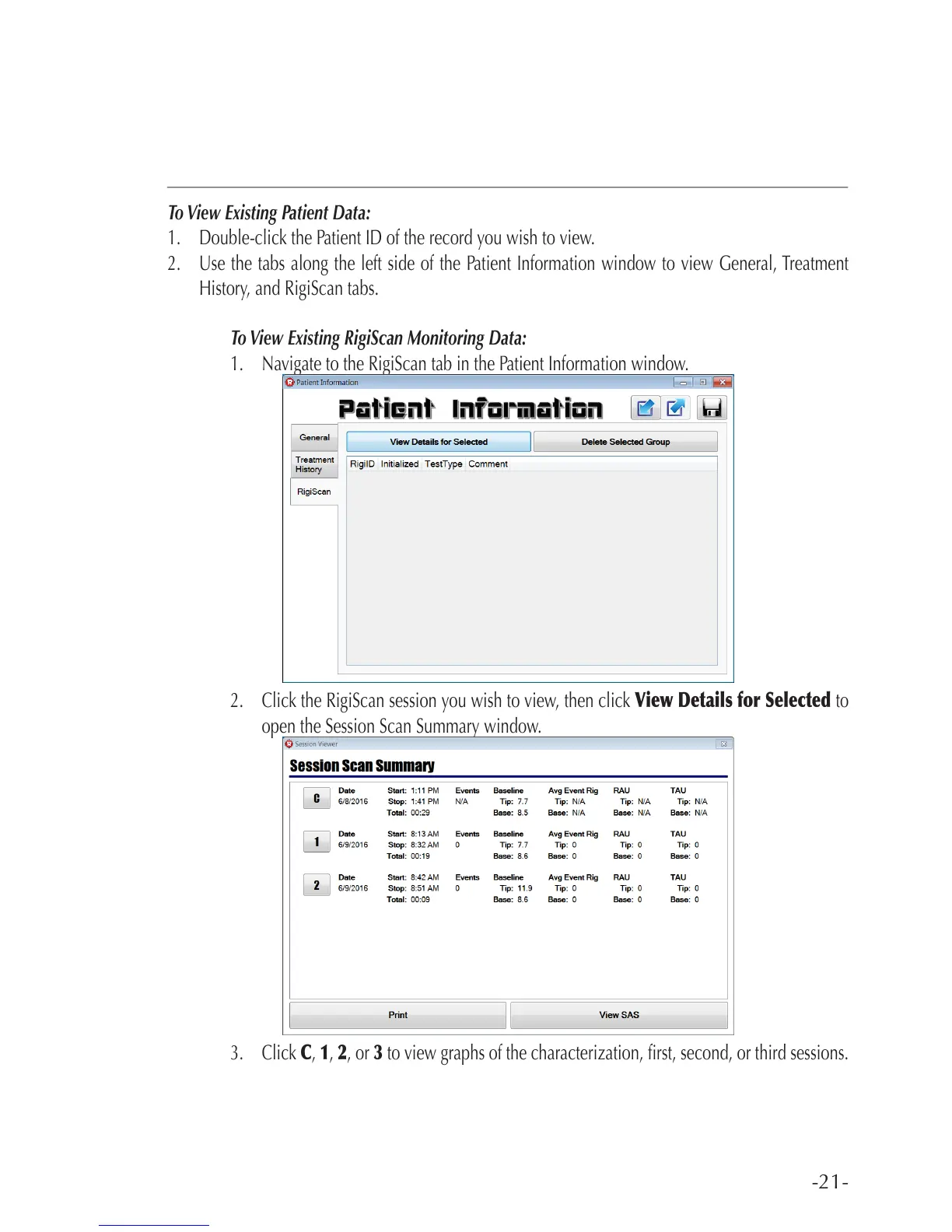
1. Navigate to the RigiScan tab in the Patient Information window.
2. Click the RigiScan session you wish to view, then click View Details for Selected to
open the Session Scan Summary window.
3. Click C, 1, 2, or 3 to view graphs of the characterization, rst, second, or third sessions.



 To Next Page