1 . , ’ ? ! ” – 1 2 a b c 2 3 d e f 3
4 g h i 4 5 j k l 5 6 m n o 6
7 p q r s 7 8 t u v 8 9 w x y z 9
* . , ‘ ? ! “ – ( ) @ / : _ ; + % * = < > $ [ ] { } \ ~ ^ # | ` & 0 Space # Switch mode
Table 14: “abc” Mode
Tips using the keypad:
To switch between the modes, users could press the # key.
Press multiple times on same key to move forward between the allowed characters.
Use Right/Left arrow keys to change the cursor’s position on the text entered.
For languages that support letters with accents, the handset now supports typing letters with accents on modes “AB3”, “abc”, and “ABC”.
WEB GUI ACCESS CONFIGURATION
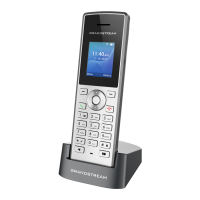
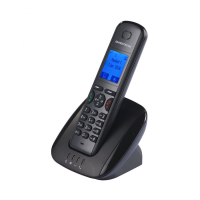
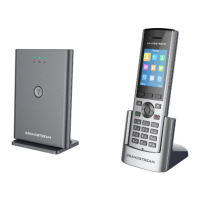
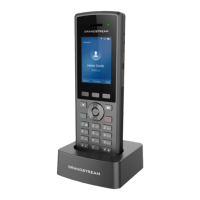
The WP810/WP822/WP825 can be configured using:
Web GUI embedded on the handset using PC’s web browser.
LCD Configuration Menu using the WP810/WP822/WP825 keypad.
Note
From the Web GUI, you can configure all the functions supported by the WP810/WP822/WP825; while via keypad menu, you can access limited configuration.


 To Next Page
 Loading...