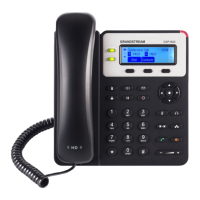
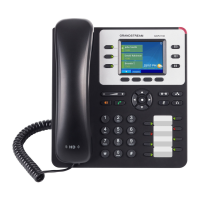
Dialing from Phonebook
Users may use their contacts list to initiate calls.
1.
Press Menu to bring up operation menu and use arrow keys to reach Contacts or press Contacts key to access directly the contacts list.
2. Select the contact to call and press Dial Key to initiate the call.
Figure 33: Dialing from Contacts List
Direct IP Call
Direct IP Call allows two phones to talk to each other in an ad-hoc fashion without a SIP proxy. VoIP calls
can be made between two phones if:
Both phones have public IP addresses; or
Both phones are on the same LAN/VPN using private or public IP addresses; or
Both phones can be connected through a router using public or private IP addresses (with necessary port forwarding or DMZ).
To make a direct IP call, dial *47 followed by the IP address of the target. Following the below syntax (Example target IP is 192.168.1.10):
– Dialing *47192*168*1*10 (to use 5060 port by default)
– Users can specify the port number as follows *47192*168*1*10#5062.
Answering Calls
When receiving an incoming call, you can answer the call using following steps:
Earpiece mode:
Press Dial Key to pick up the call, or “Accept” softkey (left softkey).
Speakerphone mode:
Press Speaker Key to pick up the call.
In step 3, users can press “Options” softkey followed by “Edit before Dialing” option to edit the number before initiating the call. The call history list stores the
last dialed phone numbers. When the memory of the redial number list is full, the handset will automatically erase oldest dialed number when a new number is
dialed.
Note
In order to receive an IP call, user need to disable using a random port, under Web GUI 🡺 Settings 🡺 General Settings : Set “Use Random Port” to No.


 To Next Page
 Loading...