Configuration via Web Browser
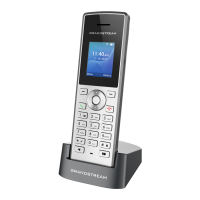
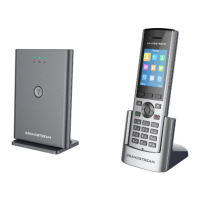
The WP810/WP822/WP825 embedded Web server responds to HTTP/HTTPS GET/POST requests. Embedded HTML pages allow a user to configure the
handset through a Web browser such as Google Chrome, Mozilla Firefox.
Accessing the Web UI
1. Connect the computer to the same network as WP810/WP822/WP825.
2. Make sure the handset is booted up and powered correctly.
3. You may check the IP address on the phone LCD menu Status 🡪 Network Status. Please see Obtain WP810/WP822/WP825 IP Address
4. Open Web browser on your computer and enter the WP810/WP822/WP825 IP address in the address bar of the browser.
5. Enter the administrator’s username and password to access the Web Configuration Menu.
Web GUI Languages
Users can select the language in web GUI login page, or at the upper right of the web GUI after logging in.
Note
Please note that Microsoft’s IE 9 and below are not supported, also the records from the web cannot be played with IE10, Edge and Safari. We highly recommend
using Google Chrome or Mozilla Firefox.
Note
The computer must be connected to the same sub-network as the phone. This can be easily done by connecting the computer to the same hub or switch as the
phone.
The default administrator username is “admin”, and the random password can be found on the sticker at the back of the unit. the default end-user username is
“user” and the password is “123”.
If ‘Web Access’ parameter is set to “Disabled” under Advanced settings 🡪 System security; web UI access will be disabled.


 To Next Page
 Loading...