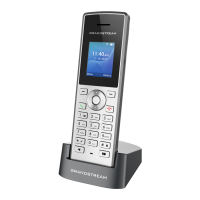
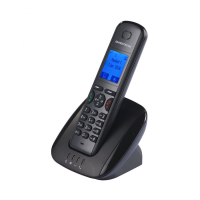
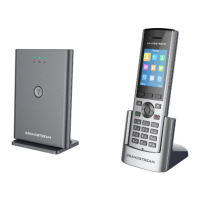
Manual connection
The WP810/WP822/WP825 support dual-band 802.11a/b/g/n/ac Wi-Fi, please refer to the following steps in order to connect to the Wi-Fi networks:
1. On LCD menu, press Menu key and navigate to Settings → Network.
2. Navigate to “Wi-Fi Networks”. A list of Wi-Fi networks will be displayed.
3. Select the desired network to connect to. (Enter the correct password to connect if requested)
The handset will display Wi-Fi icon on the main LCD menu if the con nection to the Wi-Fi network is successful.
Figure 18: Connecting to Wi-Fi Network
Wi-Fi Band Configuration
If 5GHz and 2.4Ghz are both available, the handset will use 5GHz, but it may switch to 2.4GHz if the signal of 5GHz is poor. Users may also specify the Wi-
Fi Band in order to fix it or to keep it Dual Band (Automatic) under Settings 🡪 Network 🡪 Wi-Fi Band.
Figure 19: Wi-Fi Band Configuration
Checking Status
Account Status
To check the SIP accounts status, follow these steps:
1. Press Menu key to bring up operation menu.
2. Use arrow keys to Reach Status menu and navigate to Account status.
Note
WP810/WP822/WP825 supports connection to Wi-Fi with captive portal enabled that requires additional credentials to sign up or login before it is allowed to use
Wi-Fi.
Note
Wi-Fi will restart after changing Wi-Fi band.


 To Next Page
 Loading...