Time Based: All the incoming calls will be forwarded to the number as schedule in the time period. During the setup time, the call will be forwarded to
the number in “In Time Forward To:” field. Other period the call will be forwarded to the number in “Out Time Forward To:” field.
Others: The incoming call will be forwarded when the handset is busy or no answer after certain interval “Delayed Call Forward Wait Time (s)” or if the
phone is set to DND mode.
Call Transfer
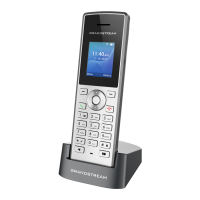
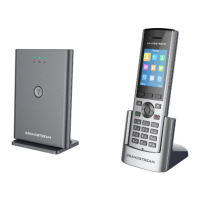
The WP810/WP822/WP825 support the call transfer feature, you can transfer a call to another party using one of the following ways:
Blind transfer: Transfer a call directly to another party without consulting
Attended transfer: Transfer a call with prior consulting.
Blind Transfer
1. Press “Transfer” softkey during a call, and then enter the number you want to transfer the call to.
2. Select Blind transfer by pressing on Blind key.
3. The call is connected to the number you specified, and the LCD screen prompts Call Transferred.
Figure 39: Blind Transfer
Attended Transfer
WP810
Using New Call softkey
1. During an established call, press Options > New call.
2. Choose the line and enter the number you want to transfer the call to, then press (Dial Key).
* The initial call will be put on hold
3. Once the second call is established, press Options > Transfer
4. Select the initial call on hold, and press Transfer to complete the transfer.
Using Attended Transfer softkey
1. During an established call, press Options > Attended Transfer.
2. Choose the line and enter the number you want to transfer the call to, then press the “Attended” key.* The initial call will be put on hold
3. Once the second call is established, Press the “Transfer” key to complete the transfer.
Note
The call forwarding can be also configured from the Web GUI 🡪 Accounts 🡪 Feature codes.


 To Next Page
 Loading...