CHAPTER 2. CONNECTION AND PREPARATION 2-9
PREFACE
CH 3. CRAFT ROBO CONTROLLER
CH 1. PRIOR TO USE
APPENDIX A
CH 2. CONNECTION AND PREPARATION
INDEX
CONTENTS
CH 4. CUTTING DATA SAVED ON SD CARD
PREFACE CONTENTS CH 1. PRIOR TO USE
CH 2. CONNECTION AND PREPARATION
INDEXAPPENDIX A
CH 4. CUTTING DATA SAVED ON SD CARD
CH 3. CRAFT ROBO CONTROLLER
(3) Press or on the control panel to select <Load Media>, and press [ENTER].
Load
Media
Unload
Media
Select
File
When the SD card is not set in the SD card slot
When the SD card is set in the SD card slot
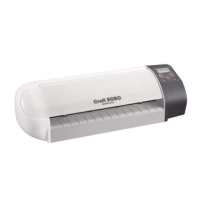
The Craft ROBO feeds the media automatically.
How to unload the media
Press to select <Unload Media>, and press [ENTER].
Unload
Media
Load
Media
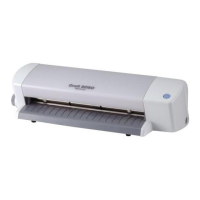
The media is output toward the front of the main unit.
When cutting is nished, <Unload Media> is displayed on the screen. In this case, just
press [ENTER] to unload media.
Allowable cutting area
Make sure that your design ts within the allowable cutting area indicated below.
If the media is A4 size
Standard mode: The width of the allowable cutting area is 190 mm.
Expanded mode: The width of the allowable cutting area is 200 mm.
If registration marks are used, the allowable width is 190 mm.
Follow the procedure below to change the mode from Standard to Expanded or
viceversa. The default setting is "Standard" mode.
1. In the Control Panel, open "Printers" ("Printers and Faxes" for Windows XP).
2. Open "Properties" for Graphtec CC300 or CC330.
3. Click [Printing Preferences] in the "General" tab.
4. Select the desired mode in "Margins" on the "Basic Setup" tab.
(If you create the cut data using the ROBO Master or Cutting Master 2, the [Expanded]
mode is selected.)
The allowable cutting area indicated above is applicable only when the media is set
correctly.
•
•


 To Next Page
 Loading...