102
EN
Creating a new holiday switching program
Up to 10 switching programs may be created.
The channel can be switched on or off for the duration of a holiday.
The holiday program must be activated in order for it to be carried out, see Chapter “Activat-
ing the holiday switching program” on page103.
Example
The channel is switched on from 7/30/2021 at 12:00 p.m. to 6:00 p.m. on 9/12/2021.
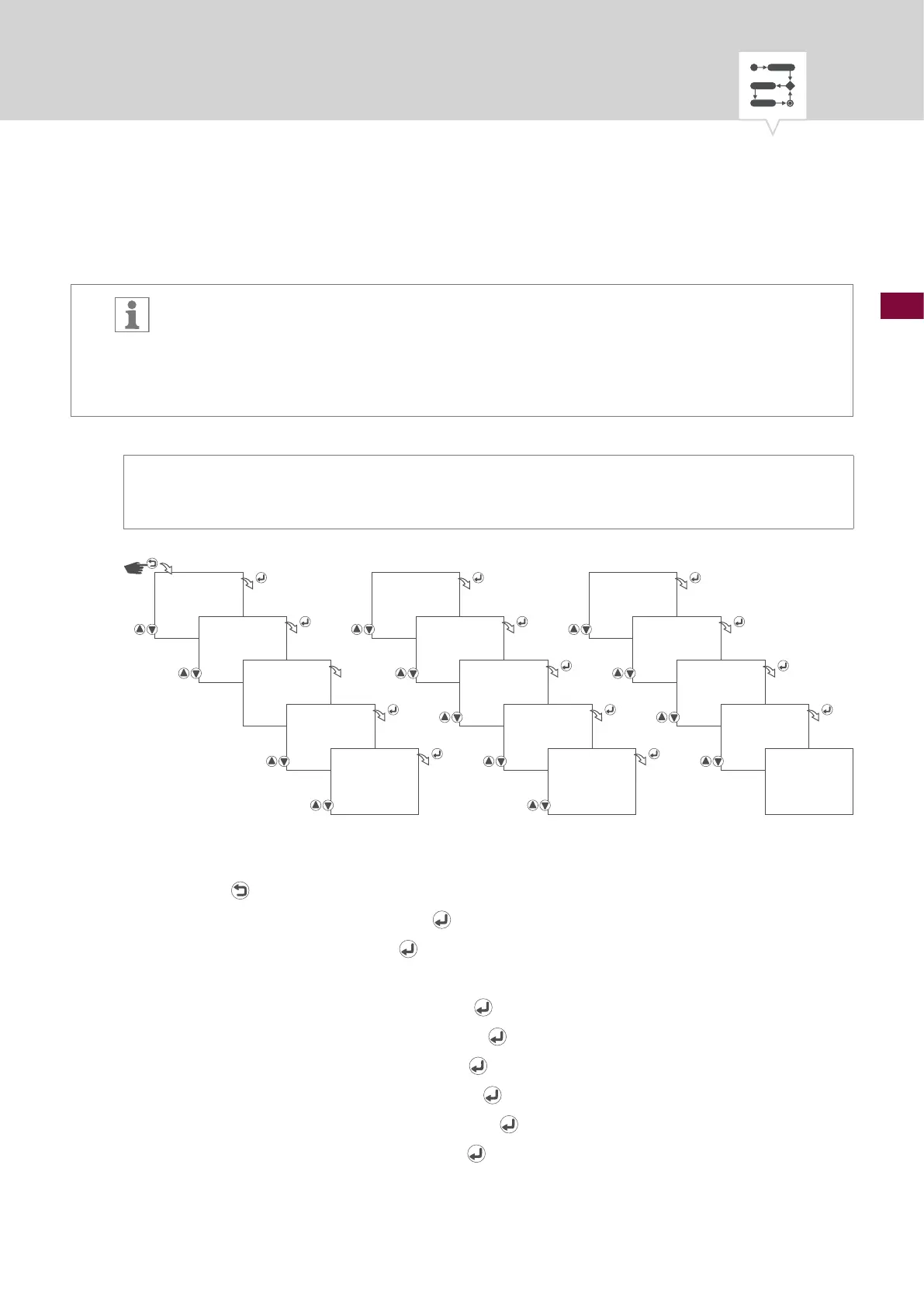
Fig. 34: Creating a new holiday switching program
1. Press the button.
2. Select
HOLIDAY and conrm with the button.
3. Select
NEW and conrm with the button.
4. The automatically assigned program number will be displayed briey.
5. Start date – select year and conrm with the
button.
6. Start date – select month and conrm with the
button.
7. Start date – select day and conrm with the
button.
8. Start time – select hours and conrm with the
button.
9. Start time – select minutes and conrm with the
button.
10. End date – select year and conrm with the
button.
HOLIDAY
NEW
PRG NO
01
START YEAR
21.--.01
START MONTH
21.07.01
START DAY
21.07.30
START HOUR
12:00
START MINUTE
12:00
END YEAR
21.--.01
END MONTH
21.09.01
END DAY
21.09.12
END HOUR
18:00
END MINUTE
18:00
ACTION
ON/OFF
SAVED



 To Next Page