30
By default, your new CONV object will be tagged “Channel”. If you'd like to
change this, just scroll the screen down one click until the flashing cursor
highlights the
Tag:
field, then press SEL to edit the tag. You can move the
cursor around using the
34
keys on the 5-way pushbutton pad, use the
CLR key to clear the old text, or press FUNC CLR to erase the entire field.
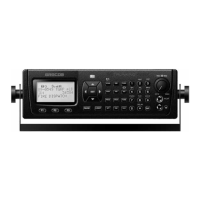
To enter text, find the letter you want to enter on the front panel of the radio,
press the numeric key beneath it, then press 1, 2, 3, or 4 depending on
the position of the letter in the group for that number. For example, to enter
FIRE
, press:
3 3
F
4 3
I
7 3
R
3 2
E
Press the ENT key or
DONE
softkey to store the new tag information for
your CONV object.
Now you are ready to store your first CONV object. There are other
parameters that you can change, and we invite you to scroll through the
CONV menu to see the other settings that are available. You can experiment
with the different settings. If you make a change that you aren't certain
about, press the
Dflt
softkey to restore the setting to its original values.
When you're ready, simply press the
Save
softkey to save your new
conventional object. Once the object is saved, you can continue to enter
other new objects, or press MAN to listen to the CONV object you just
entered, or SCAN to start scanning!
NOTE: Your scanner uses Scan Lists as a way to group objects together
according to your preferences for scanning. By default, all new objects are
mapped to Scan List 01. There are a total of twenty regular Scan Lists in
your radio, a special Favorites Scan List, and a Scan List to hold Skywarn
objects. Scan List membership for an object is assigned in the individual
object menus. For now, just let your new objects go to the default Scan List
01. Later in this section we will show you how you can group your objects
into Scan Lists.
NOTE: When entering data into a numerical field, you can start typing
as soon as you have scrolled to the desired field, which will replace the
contents of the field with your new entry. Alternatively, you can press the
4
key, which will preserve the original contents of the field so you can make
small changes without retyping all of the data.


 To Next Page