Hermiankatu 6-8G, 33720 Tampere, Finland
©2019 Grundium. All rights reserved.
17 CREATE A NEW TEAM
When you use Ocus® for the first time you need to create a team or to join an existing team.
17.1 CREATE A NEW TEAM WHEN OCUS® IS TAKEN INTO USE AT FIRST TIME
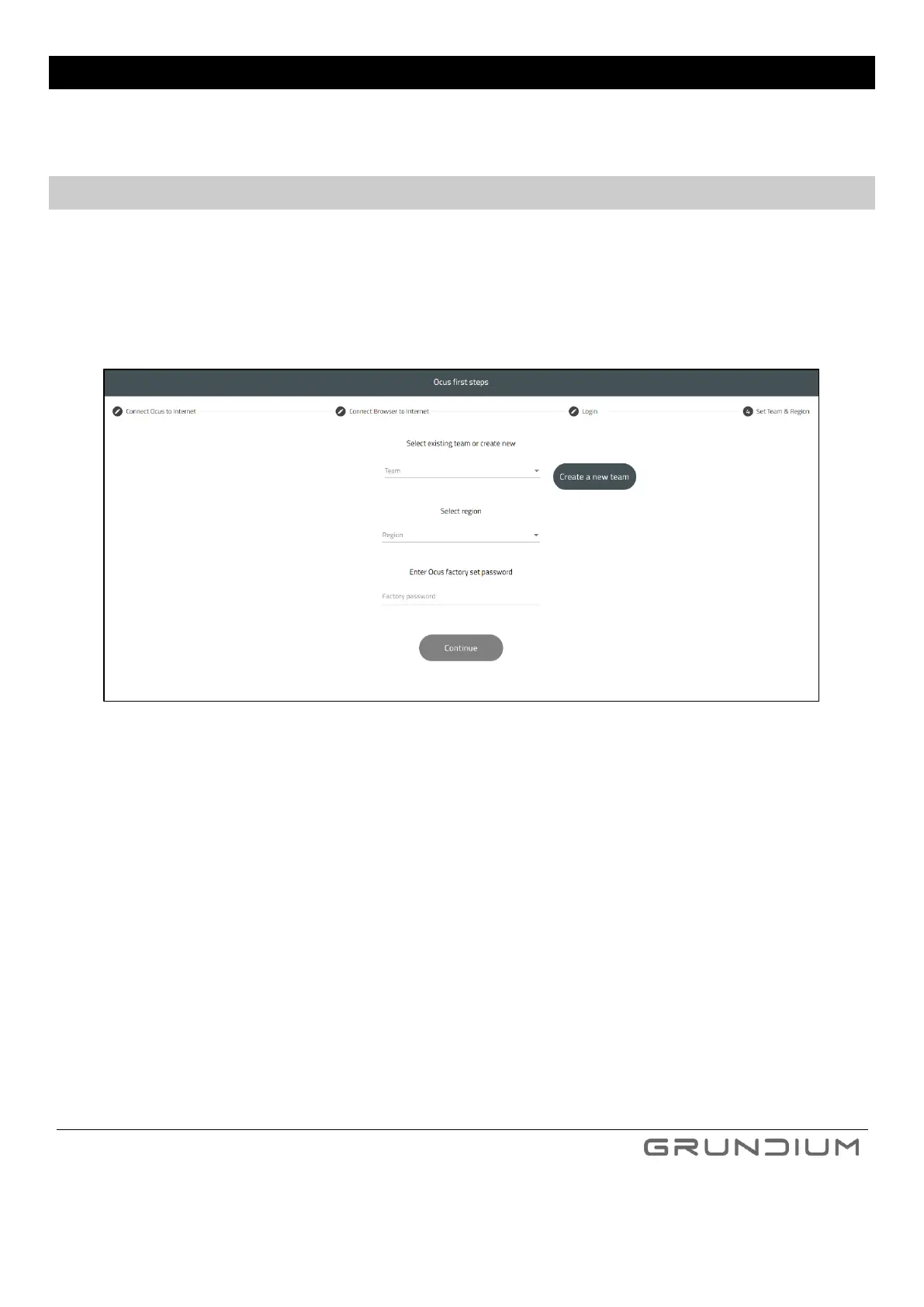
When Ocus® is taken into use at first time, you need to create a team at step 4 – Set Team & Region. A team
enables you to share the scanner with other team members.
1. Click Create a new team. Give team a valid name.
Note: Name of the team needs to be in small caps and without spaces.
Image 21 Create a new team by giving required information.
2. Select a region from the menu
3. Enter the Password. It can be found from the label at the bottom of the device or from the label
attached to the Quick guide (Image 4).
4. Click Continue.
If you want to join an existing team, ask someone from the team to add you. See instruction to Add new team
members.


 To Next Page