7 FIRST USE
When you use the scanner for the first time, you need to connect it to your computer or tablet and set up an
Internet connection for the scanner. You can use either a network cable or a WLAN for the connection.
Note: When starting up the scanner for the first time, you must have an Internet connection. After that, it is possible
to use the scanner even without an Internet connection, but the feature set will be limited (See Table 1). The
scanner must be connected to Internet at least once in every 2 months.
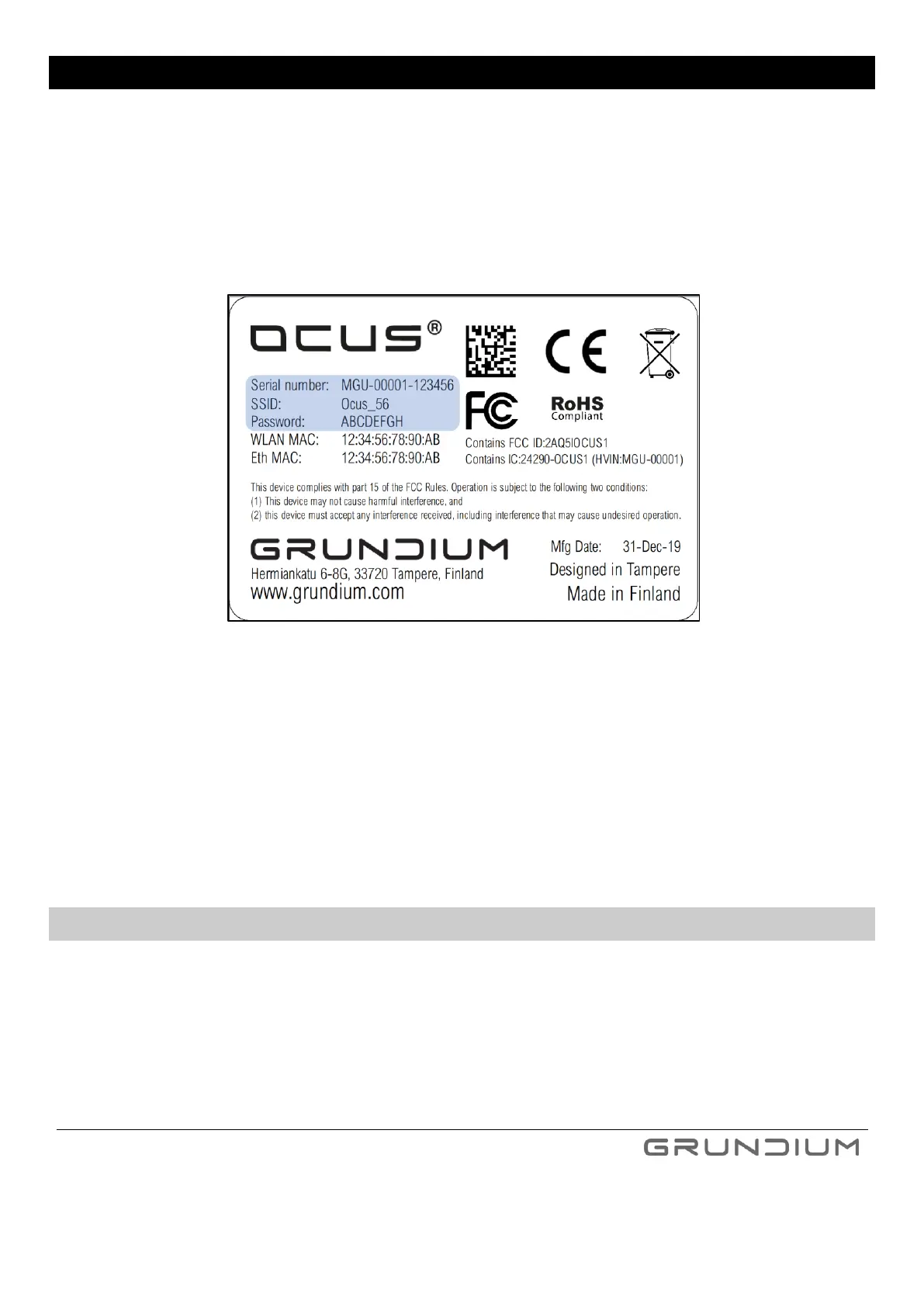
Image 4 Label example with a serial number, SSID and a password
Note: For the first-time use, the scanner requires that the network has a DHCP server providing IP address. If the use
of static IP is required, this can be done after the first time use by entering device settings.
Note: If the network you use has a firewall, make sure that the scanner is allowed to use the outgoing connection to
the Internet (TCP ports 80 & 443 for use within same network and TCP port 471 for use from remote network). If the
firewall uses a MAC filter, you can find the MAC address of the scanner on the label at the bottom of the scanner.
Also, traffic between devices in the network must be allowed.
7.1 FIRST USE WITH A NETWORK CABLE CONNECTION
1. Attach the power cable to the scanner and plug the cable in a wall outlet. The power button shows a
breathing green light.
2. Connect one end of the network cable to the scanner and the other end to the Ethernet connector for
your network.


 To Next Page