Introduction
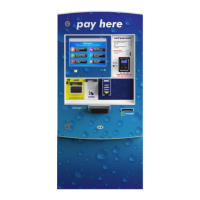
HTK (Hamilton Transaction Kiosk)
What you will need:
Computer or laptop connected to the same network the HTK will connect to. A USB Keyboard, USB
mouse, the keys and lock crank to the HTK.
You can plug the keyboard and mouse into any open USB port inside the HTK.
How to log into the HTK:
When logging into your HTK for the first time, unlocking the door will trigger the log in screen to appear.
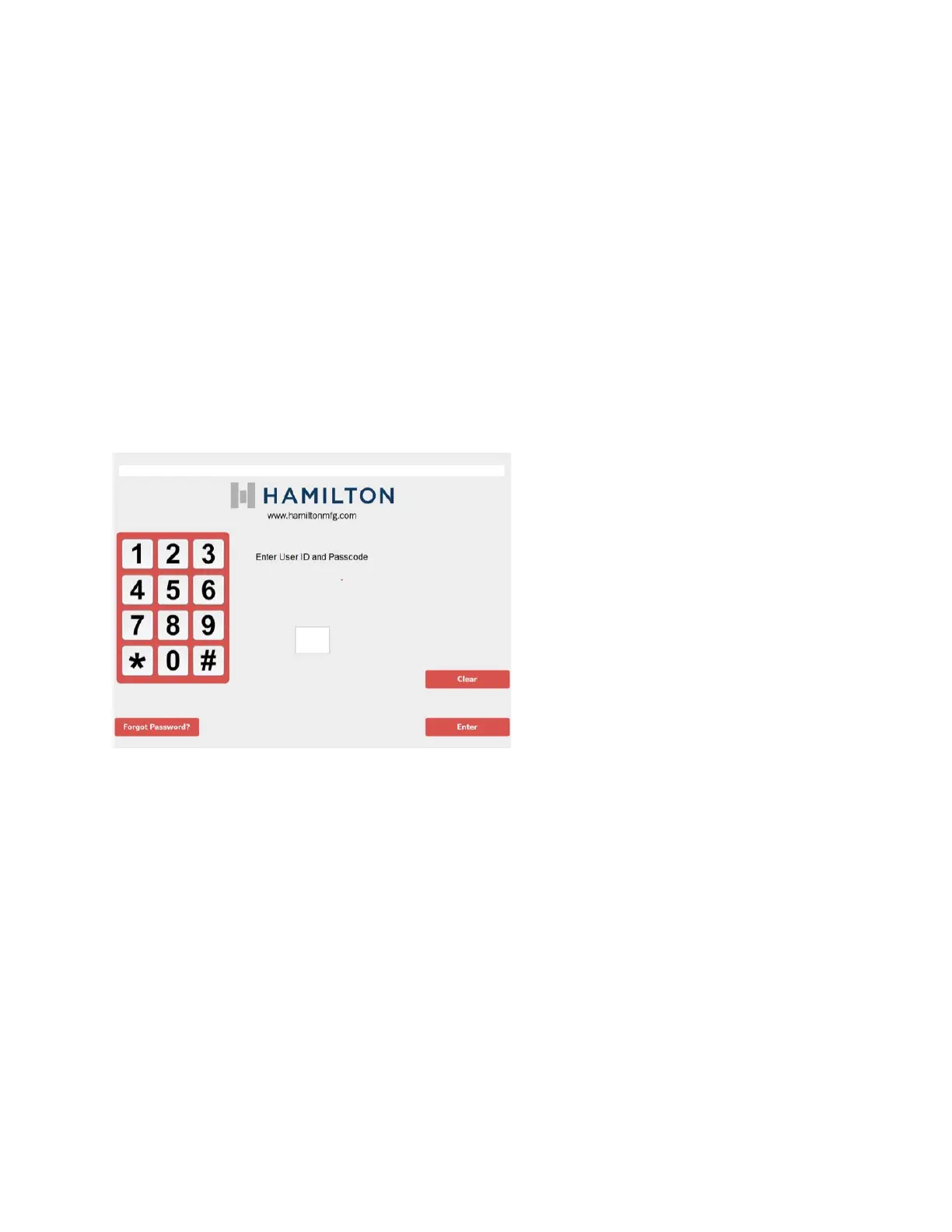
This screen will prompt you for a user ID and Passcode, using the numeric keypad on the door, type in
the default user ID and Passcode.
User ID: 00 Passcode: 12345 then hit enter
HTK’s with a touch screen: When you are at the log in screen, a small keypad will appear under the
Passcode box. If you touch the keypad, it will become larger so you can enter the user ID and Passcode.
User ID: 00 Passcode: 12345
Then hit the enter button. The HTK will immediately prompt you to change the Passcode. The local
admin Passcode will be all numeric and should be five digits long. This Passcode will expire every 90
days. Admin login should only be used as last resort. Each person should have their own log in
credentials (see set up user section).



 To Next Page