Pro-Stcher Lite for the HQ Simply Sixteen Installaon Instrucons | 35
Update the Pro‑Stcher Lite Soware
Pro‑Stcher would like to make sure your soware is always up to date. Here are the steps to take to
ensure you have the latest version of Pro‑Stcher Lite.
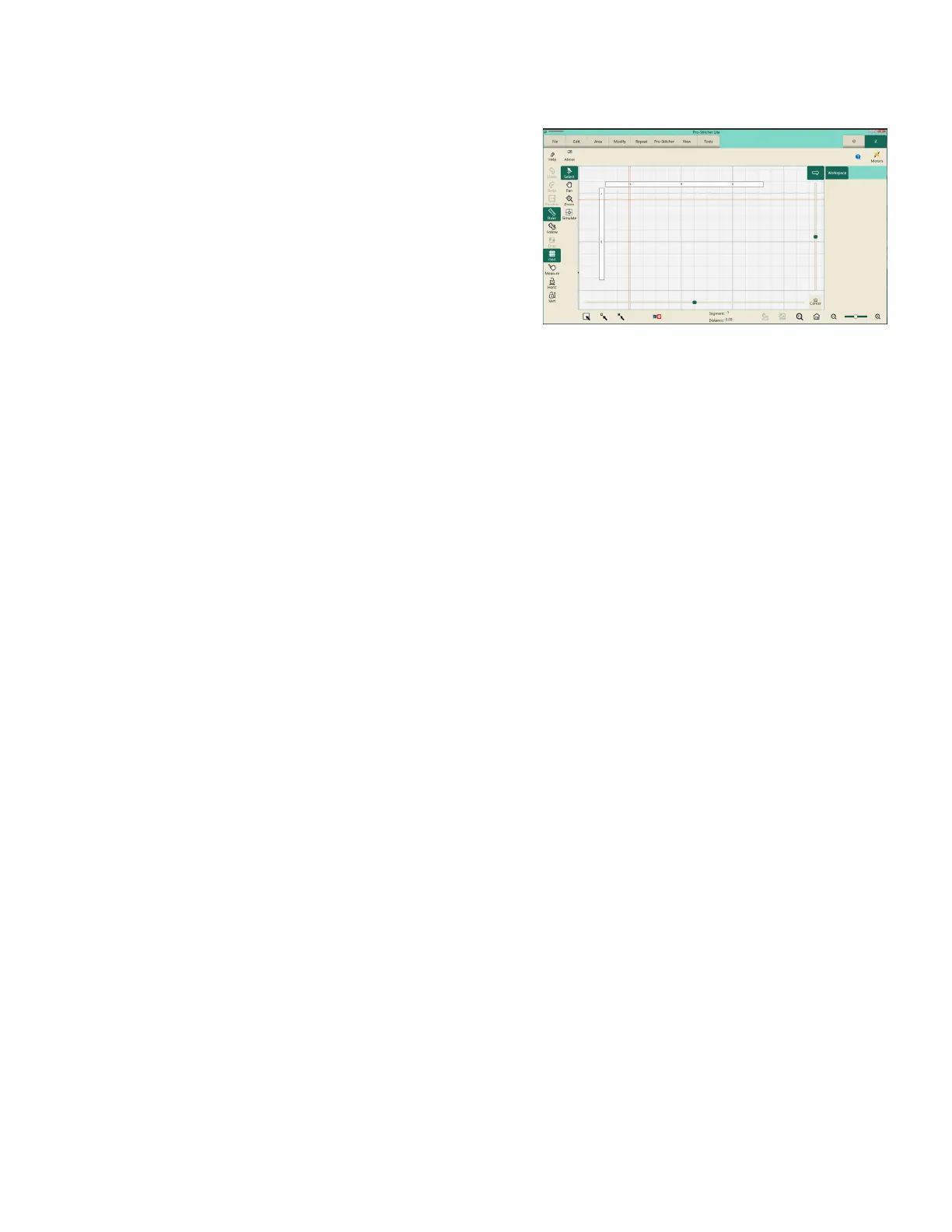
1. In the Pro‑Stcher Lite soware, select the “i” icon in
the upper right‑hand corner of the screen. This is the
informaon screen.
2. On the le‑hand side of the screen, select the “About”
buon to display the informaon. A pop‑up will show
you what version of Pro‑Stcher Lite you have.
3. Go to hps://www.ProStcher.com/prostcher‑lite‑soware‑update/. Compare the latest version
number here with the version number installed on your tablet. If your version is the most recent, you
are ready to quilt. If you do not have the latest version installed, proceed with the following direcons.
Downloading the Updated Pro‑Stcher Lite Soware Version
Tools required: USB drive
NOTE: Use the USB port on the tablet that is not being used.
1. Insert a USB drive into the USB port of a computer connected to the Internet.
2. In a browser window, navigate to the Pro‑Stcher website:
hps://www.ProStcher.com/prostcher‑lite‑soware‑update/
3. Select Download to download the most recent version compable with your tablet. The zip le will be
saved to the Downloads folder on your computer.
4. Locate the PSUpdate[Version#].zip folder. Right‑click the folder name and select Extract All to unzip the
update le.
5. Copy the unzipped PSUpdate.[Version#].exe le from the folder to the USB drive.
NOTE: The higher the version number, the more up‑to‑date the version is.
6. Aer the le is copied to the USB drive, unplug the USB drive from the computer and plug it into the
USB port on the Pro‑Stcher Lite tablet.
Check for a new soware version every few weeks and update your Pro‑Stcher Lite soware as needed.


 To Next Page