22 ODROID-XU4 USER MANUAL
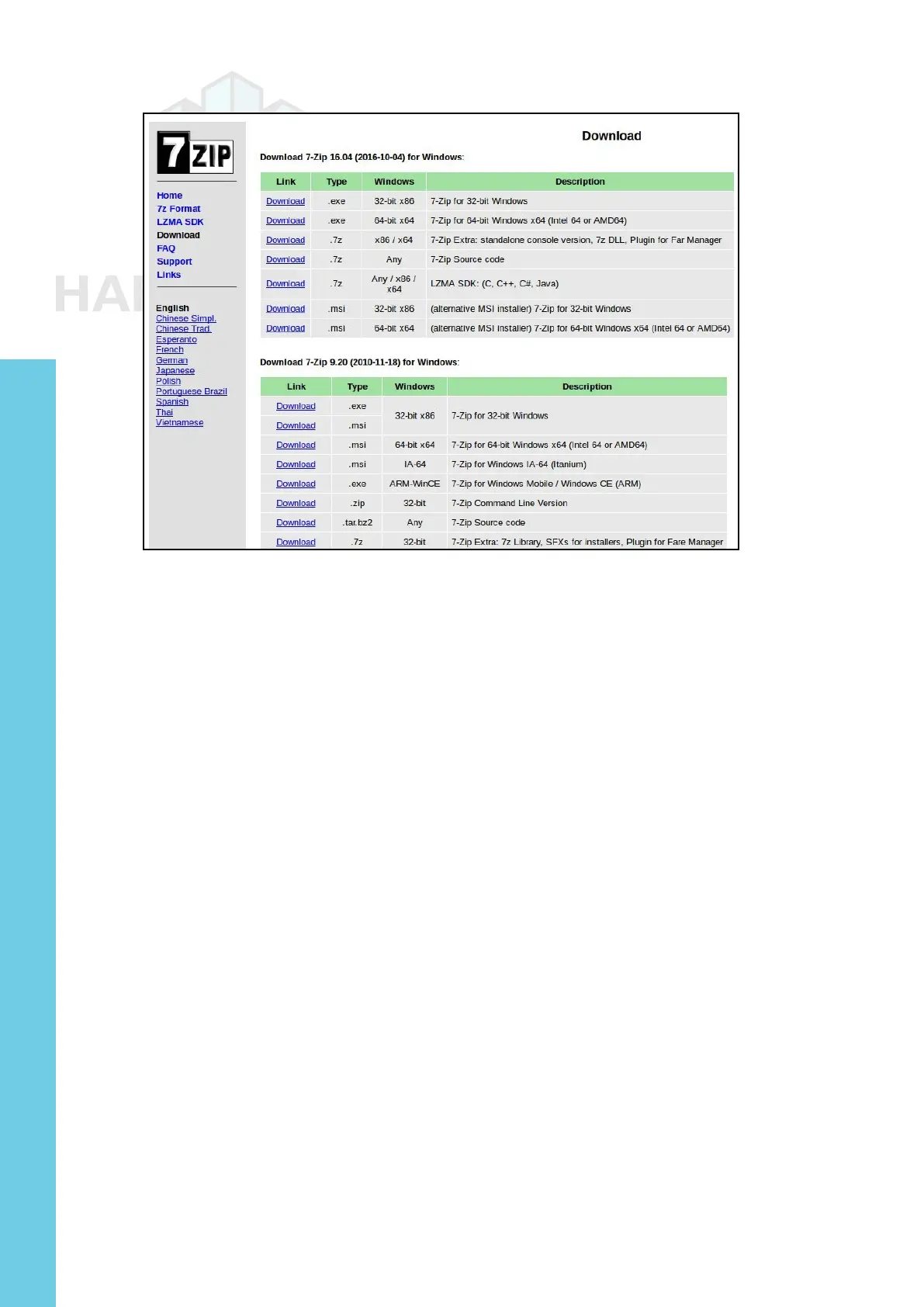
List of 7-zip installation les
After the le is downloaded, run it and select the default op-
tions, and wait for 7-zip to nish installing. Next, launch the Windows
Explorer application and browse the download directory. Select the
downloaded compressed image le and right-click the le with the
mouse. Select the 7-zip menu option and under that select the Extract
Here option. After the uncompress process, it will result in the image
le that can be ashed. In this example, it will be
ubuntu-16.04-mate-
odroid-xu3-20161011.img
. Note that, although this image is an XU3
image, it is compatible with the XU4 board.
Another essential utility is one that will be used to ash the un-
compressed image le, such as the Win32DiskImager utility. Hard-
kernel has an updated version of it that adds a useful step to the ash
process, which clears the boot media prior to writing the image. This
version of Win32DiskImager.exe can be downloaded from http://bit.
ly/1LVPcbF
. Uncompress the compressed image le using the 7-zip
application, which generates the directory win32diskimager2-binary
that includes the Win32DiskImager2.exe application. Move the entire
directory to C:\Program Files (x86):
C:\Program Files (x86)\win32diskimager2-binary\
You will need to be logged in to Windows OS as an administrator
to move this directory. Then, create a shortcut for the application on
the desktop using the following link:
Chapter 2


 To Next Page