62 ODROID-XU4 USER MANUAL
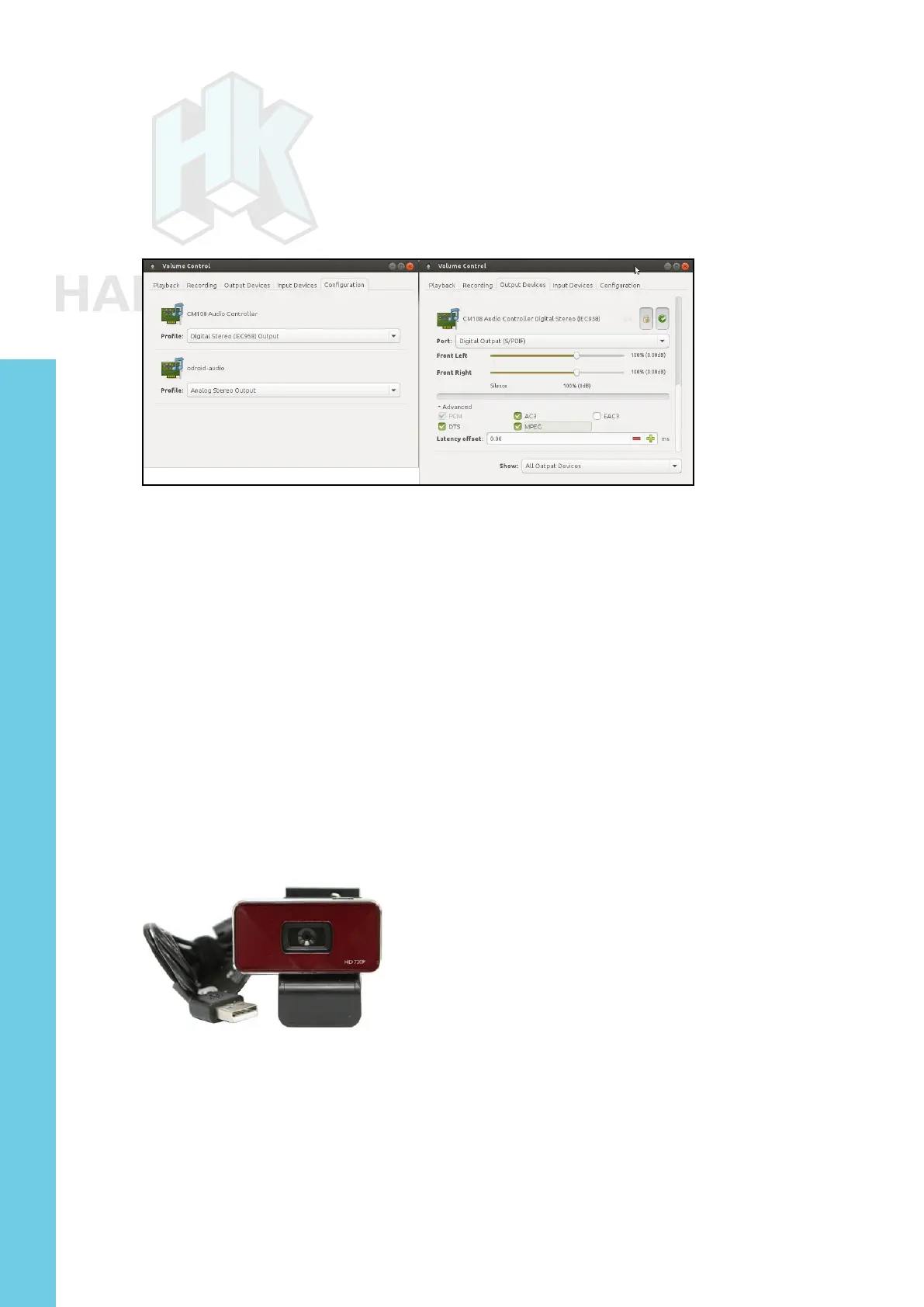
boot the system, then congure it by launching PulseAudio Volume
Control from the Applications menu. Then, in the Conguration tab,
select the Digital Stereo Output prole, and select the Output Devices
tab and update the conguration for the CM108 device as shown be-
low. Note that TrueHD or DTS-MA pass-through is not supported.
PulseAudio Volume Control settings for the SPDIF
Connect a TOSLINK optical cable to this SPDIF peripheral and
an AV Receiver capable of accepting the optical TOSLINK cable. The
AV Receiver should be connected to an appropriate set of speakers.
Power up the AV Receiver and select the appropriate input option on
the AV Receiver. Launch the browser on the XU4 and access a You-
Tube video link that has audio included. Play it in order to verify that
the audio is audible.
USB-CAM 720P
Hardkernel offers a USB-CAM rated at 720p with up to 30 fps.
The image below shows a camera that is certied to work with the
XU4:
720p 30fps USB-CAM
Attach the USB-CAM to an available USB port on the XU4, and
wait for a few moments. Install the camorama application using the
following command:
$ sudo apt-get install camorama
Chapter 4


 To Next Page