52 ODROID-XU4 USER MANUAL
The four steps include:
• Select the Serial port setup option, which will display screen 2.
• In screen 2, type A to select option A. Edit the serial device
to that used on your system. In this case it is: /dev/ttyUSB0. Ensure
the lockle location is what was obtained earlier. Likewise, check that
option E reects the information shown in the gure: 115200 8N1. En-
sure Hardware Flow Control is set to YES, then hit the ENTER key to
go to the next screen.
• In screen 3, select the Save setup as … option to save this
cong for future use. Enter a lename at the new prompt. Hit ENTER
to accept the lename. Then select Exit option to complete the cong
process.
• You will now return to the terminal windows, as shown in step
4. Reboot the XU4 and you will observe boot-time information scroll
through the minicom (terminal) session.
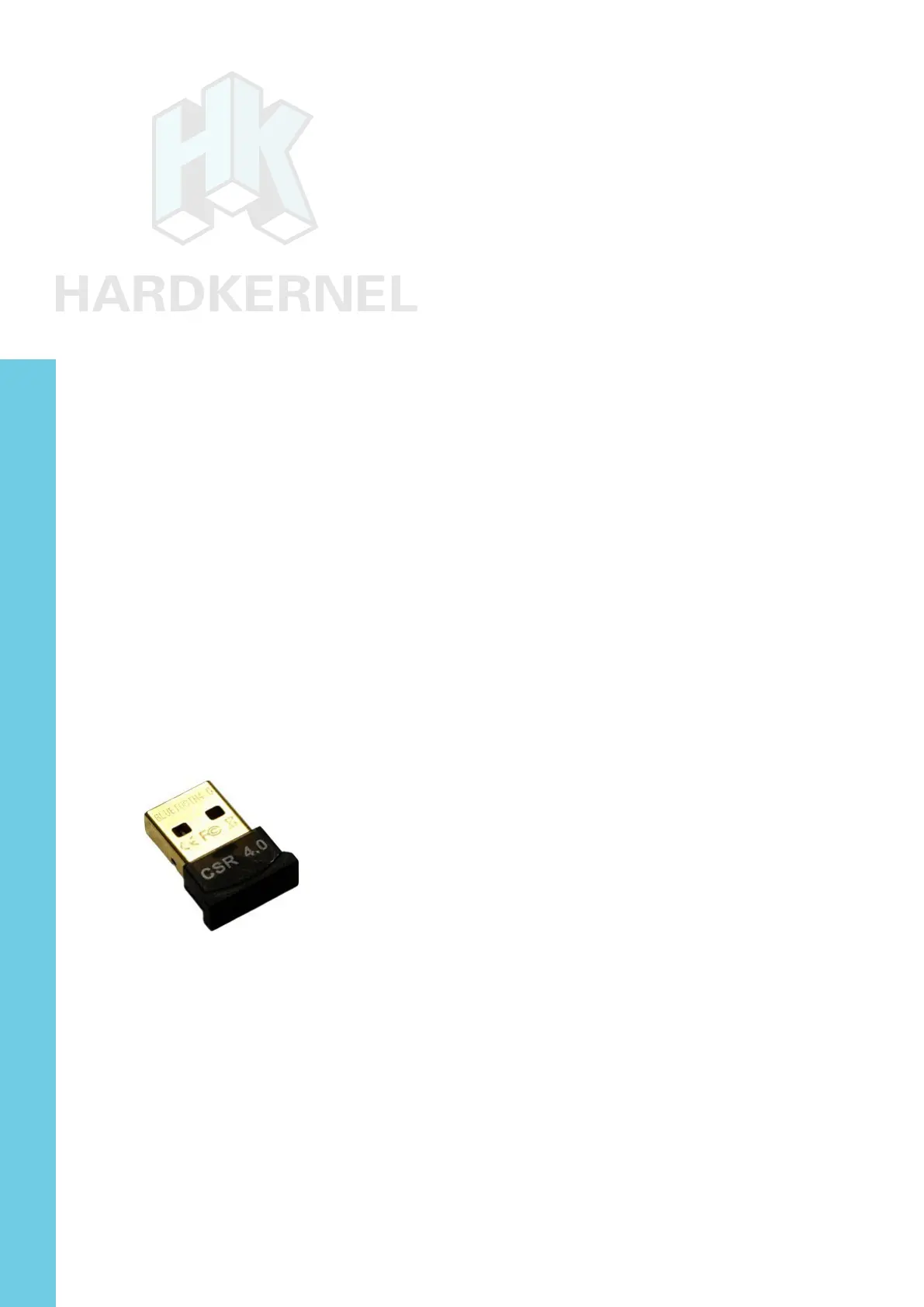
Bluetooth Module 2
Hardkernel offers a bluetooth adapter called the Bluetooth (4.0)
Module 2 which is certied to work with the XU4 under both Android
and Linux in the following modes:
• Classic Bluetooth v2.0: Android, Linux
• Bluetooth High Speed v3.0: Linux
• Bluetooth low energy v4.0 (BLE): Linux
Bluetooth Module 2 adapter
While some of the required software modules may already exist
in your XU4’s image, it is helpful to install the following additional mod-
ules and utilities using the following commands:
$ sudo apt-get install bluez-dbg bluez-utils bluez-tools
$ sudo apt-get install bluewho blueman python-bluetooth
Some of these utilities may be used to debug your Bluetooth
setup if you are using a third-party bluetooth adapter. Next, check
the USB information related to the adapter using the lsusb command.
Chapter 4


 To Next Page