53 ODROID-XU4 USER MANUAL
You can check the Bluetooth adapter’s support for additional features
by examining the dmesg logs, using the following command:
$ dmesg | grep Blue
[0.182920] Bluetooth: Core ver 2.18
[0.182951] Bluetooth: HCI device and connection manager init
[0.182965] Bluetooth: HCI socket layer initialized
[0.182977] Bluetooth: L2CAP socket layer initialized
[0.182999] Bluetooth: SCO socket layer initialized
[3.650243] Bluetooth: RFCOMM TTY layer initialized
[3.650254] Bluetooth: RFCOMM socket layer initialized
[3.650265] Bluetooth: RFCOMM ver 1.11
[3.650272] Bluetooth: BNEP (Ethernet Emulation) ver 1.3
[3.650274] Bluetooth: BNEP lters: protocol multicast
[3.650279] Bluetooth: BNEP socket layer initialized
[3.650281] Bluetooth: HIDP (Human Interface Emulation) ver 1.2
[3.650286] Bluetooth: HIDP socket layer initialized
You can then check the list of the installed Bluetooth modules,
using the command “dpkg -l | grep blue”. We can then check the pres-
ence of the Bluetooth device, which is useful for connection congura-
tion later:
$ hcicong
hci0: Type: BR/EDR Bus: USB
BD Address: 00:1A:7D:DA:71:13 ACL MTU: 310:10 SCO MTU: 64:8
UP RUNNING PSCAN
RX bytes:685 acl:0 sco:0 events:50 errors:0
TX bytes:4159 acl:0 sco:0 commands:50 errors:0
$ sudo rfkill list all
0: hci0: Bluetooth
Soft blocked: no
Hard blocked: no
Hard blocked: no
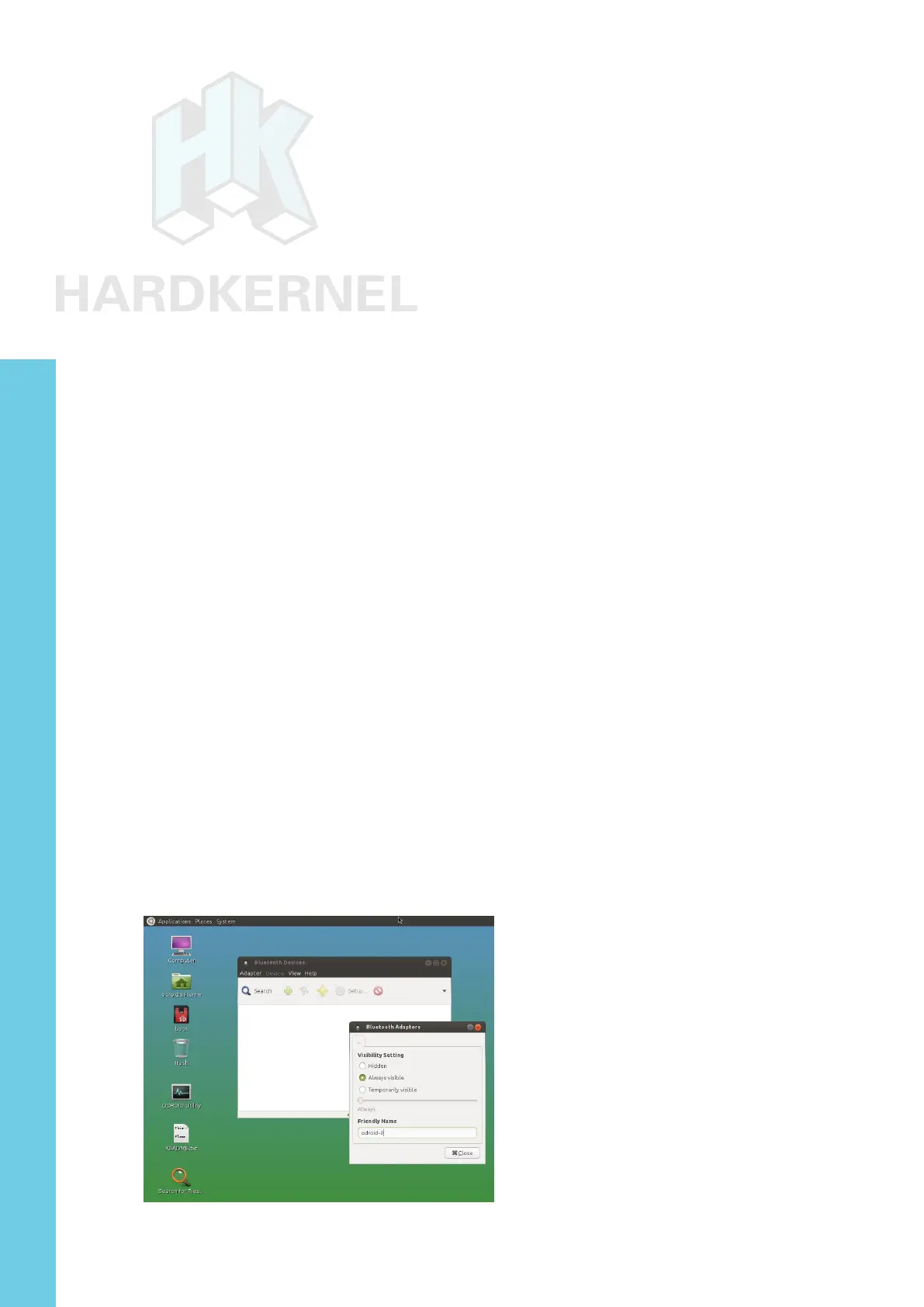
Bluetooth Manager conguration screen
Chapter 4


 To Next Page