54 ODROID-XU4 USER MANUAL
To congure the adapter from the Ubuntu desktop, launch the
Bluetooth Manager conguration utility from the System → Preferenc-
es menu item. Then, select the Adapter → Preferences menu item
to congure the application. Keep the friendly name of the Bluetooth
adapter as “odroid-0”. You can make the device always visible when
other Bluetooth devices scan for this adapter. The image above shows
the conguration screen. After conguring, save the changes and re-
boot.
If there is a need to test or debug issues related to the adapter,
you can use the command line Bluetooth packet analyzer/sniffer tool
called “hcidump” to analyze the Bluetooth trafc. This tool does not
have a prebuilt package, so it needs to be built from source using the
following steps:
$ sudo apt-get install autoconf
$ cd ~/
$ mkdir hci
$ cd hci/
$ wget -c http://www.kernel.org/pub/linux/bluetooth/bluez-hcid-
ump-2.5.tar.xz
$ tar xvfJ bluez-hcidump-2.5.tar.xz
$ cd bluez-hcidump-2.5
$ autoconf
$ automake --add-missing
$ ./congure
$ make
$ sudo make install
$ sudo hcidump
HCI snier - Bluetooth packet analyzer ver 2.5
device: hci0 snap_len: 1500 lter: 0x
…
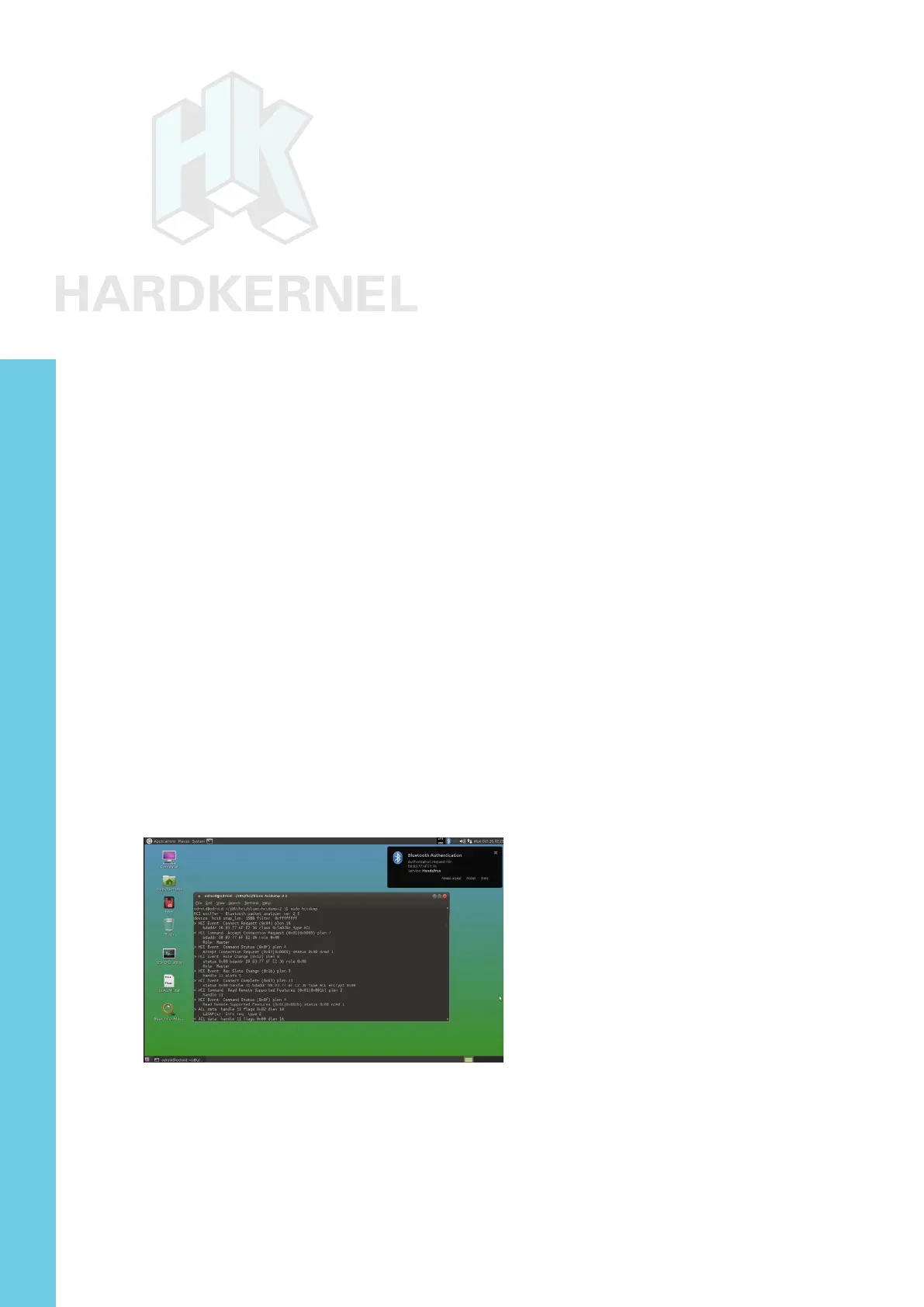
Debug Bluetooth trafc using hcidump
Using a device that has Bluetooth support, enable it and scan for
the XU4’s Bluetooth device called “odroid-0”. Select it in order to pair
it with the XU4. Debug information will appear in the terminal instance
where the hcidump utility was started, as shown in the image above.
Chapter 4


 To Next Page